14. CUCM 8 – free sftp solution for backup on ubuntu 10.04 server

All application based elements of cisco unified communication platform offer disaster recovery system that enable backup and recovery after failure. Backup can be made to two devices. First option is tape device, second is secure FTP (sftp). Because we need cost saving solution in training environment we decided for open-ssh server on ubuntu server.

Cisco recommended steps for establishing backup on Cisco unified platform are here http://www.cisco.com/en/US/products/sw/voicesw/ps556/

products_configuration_example09186a0080ab9fc0.shtml.

Next steps expect basic unix system administration abilities. From ubuntu.com please obtain ideal LTS version of ubuntu server. At this time it is version 10.04 for 32 or 64 bit platform.

Next steps describe only necessary commands for CUCM backup account creation, open-ssh server install and change ownership and adding permission to modify content of user home directory.

Open-ssh server as sftp server on ubuntu step-by-step:

1) Create group for sftp access (optional) for further platform hardening – sudo groupadd sftpuser

2) Create user account for backup sudo adduser cucm_8 sftpuser and make password during user creation dialog

3) Change ownership of home directory sudo chown root.root /home/cucm_8

4) Alter permission for read and write to home directory of backup user sudo chmod 777 /home/cucm_8

5) Install open-ssh server  sudo apt-get install openssh-server

6) Test connectivity to sftp account from FileZilla client (or your preferred supporting secure mode) – transfer and delete file!!!
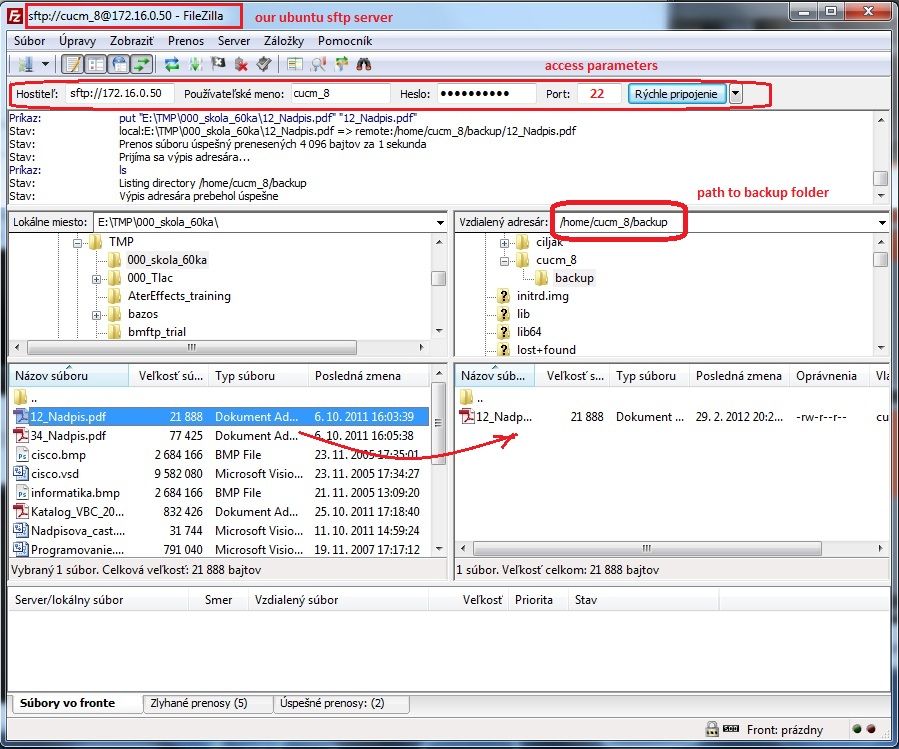
 

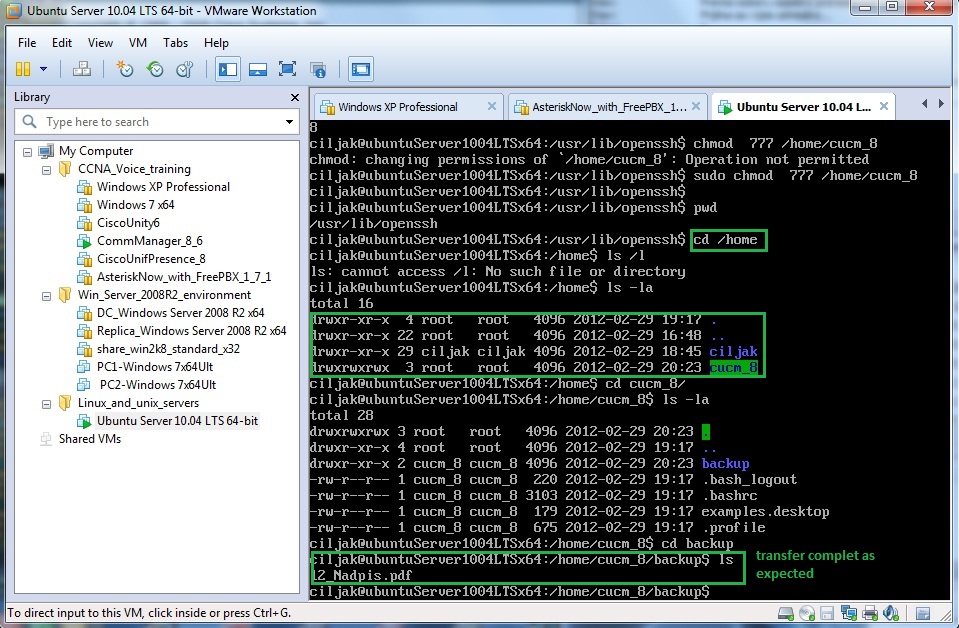
And another way look – from CLI of ubuntu server
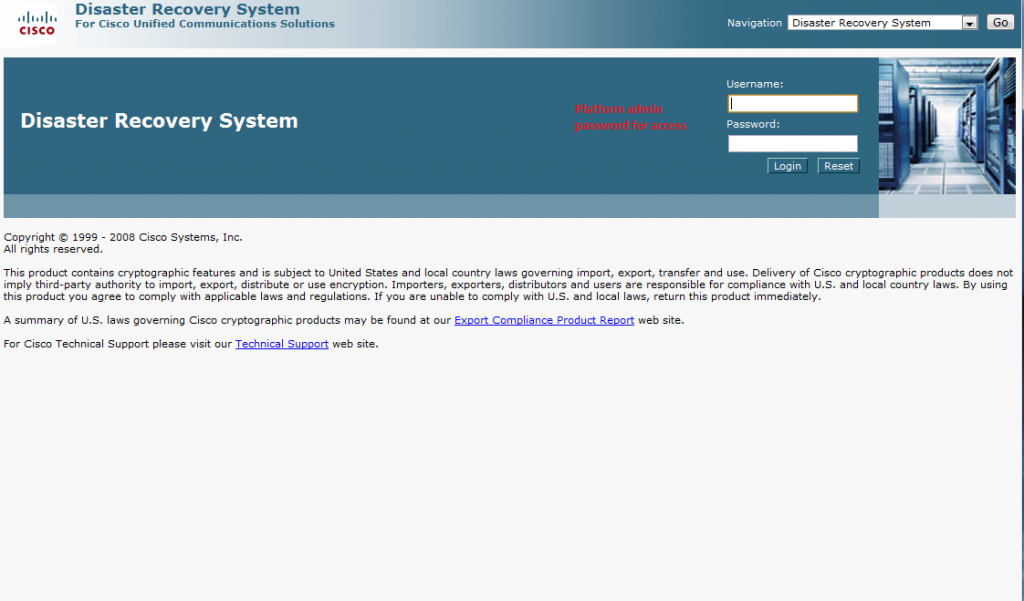
Now is all prepared for CUCM Disaster recovery system setup. From administration menu select Disaster recovery system and type platform administration password.
After successful login we going to next menu
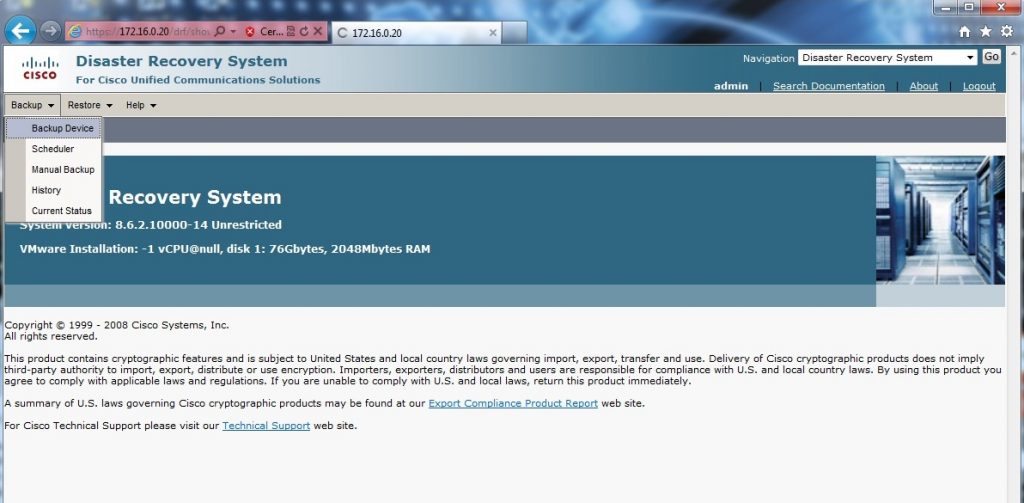
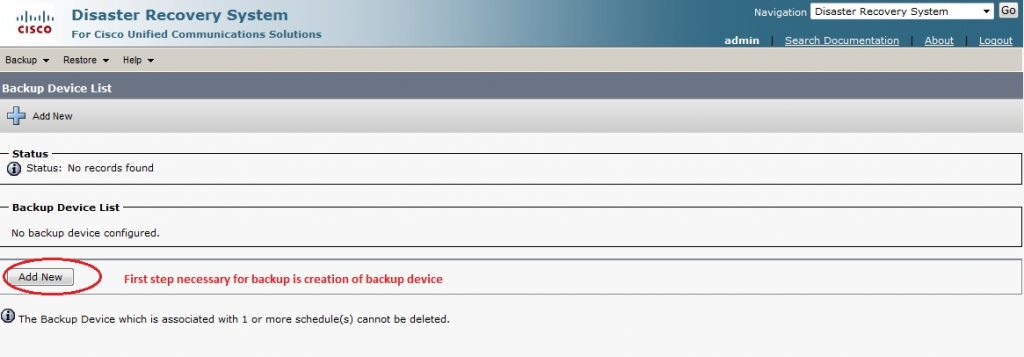
Before first backup disaster recovery system need create a backup device. There are two options, but in training environment is only one options, make a backup to sftp server (that we succesfully manage in previews steps).
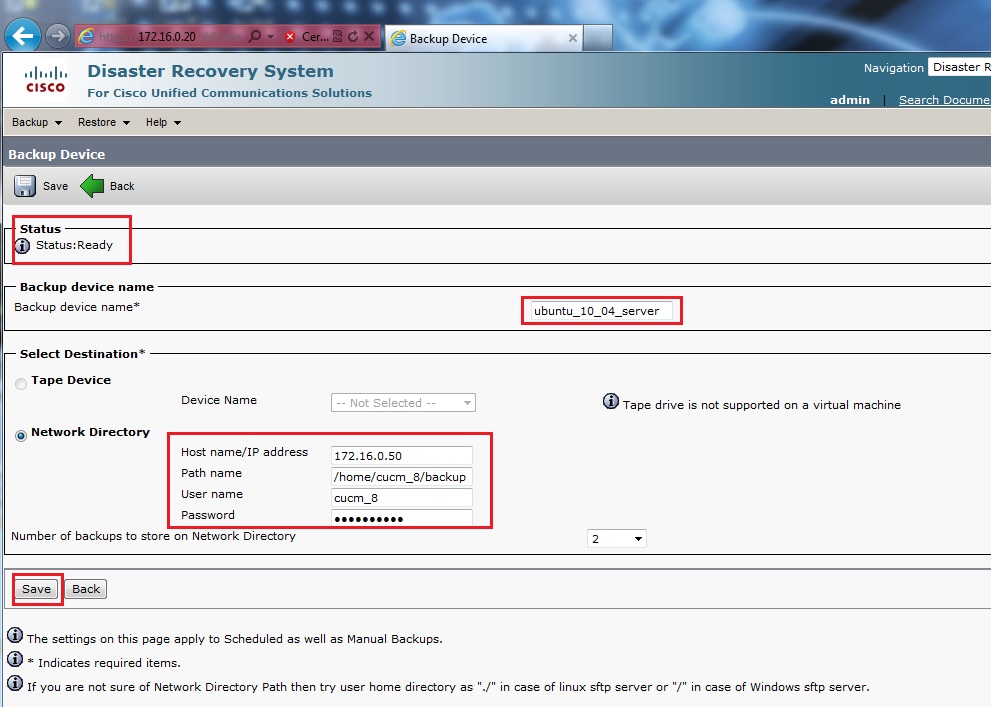
And in adding dialog properly configure sftp access credentials – user, password and path to backup directory in backup server in our case it is /home/cucm_8/backup
In next step if verification of sftp server was without any errors we obtain this output
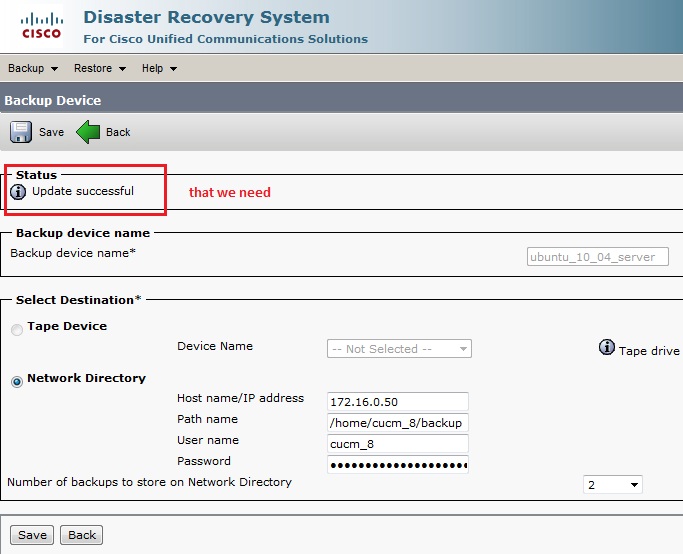
Our backup device have been successfully created and now it is right time make first disaster (our training of course :-)) backup. To backup dialog as you can guess lead this way
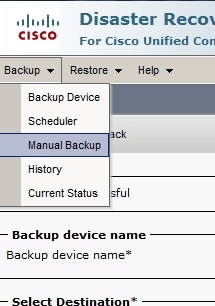
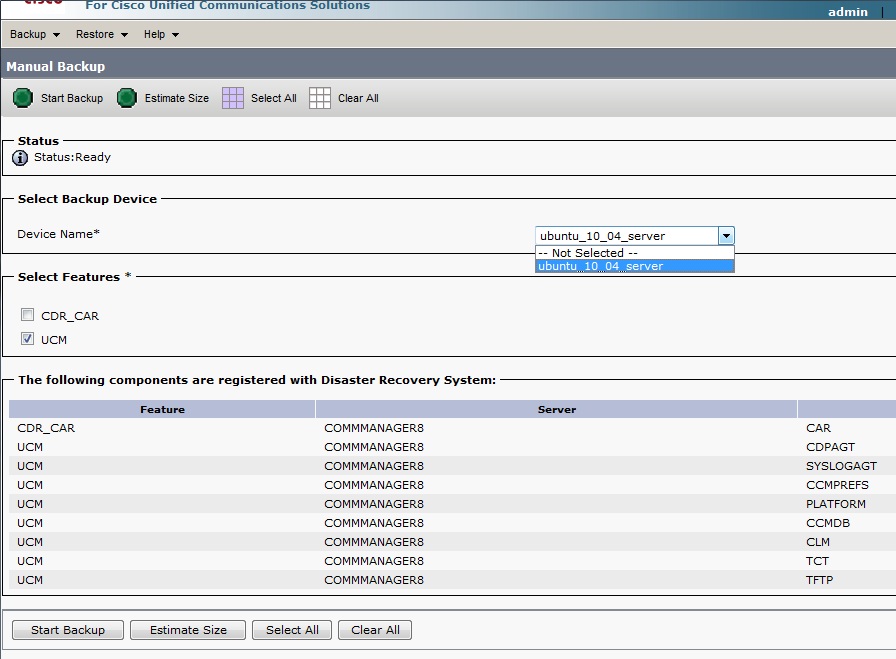
This choice open dialog for manual backup
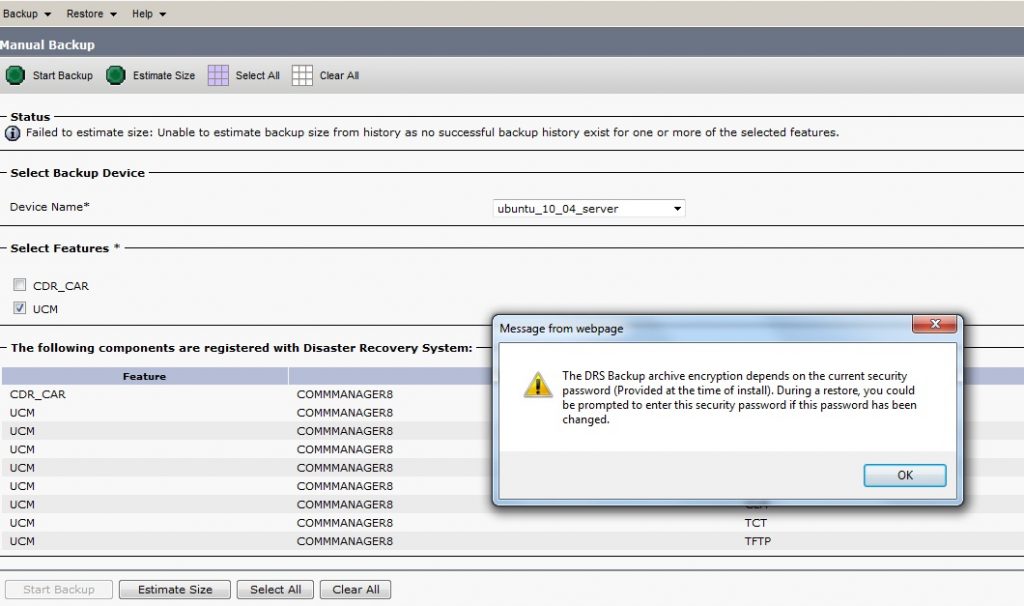
Before backup begin we obtain warning about password for access of backup content like this
Our data now moving to sftp server in encrypted form (are not so easy to read in case of their interception).
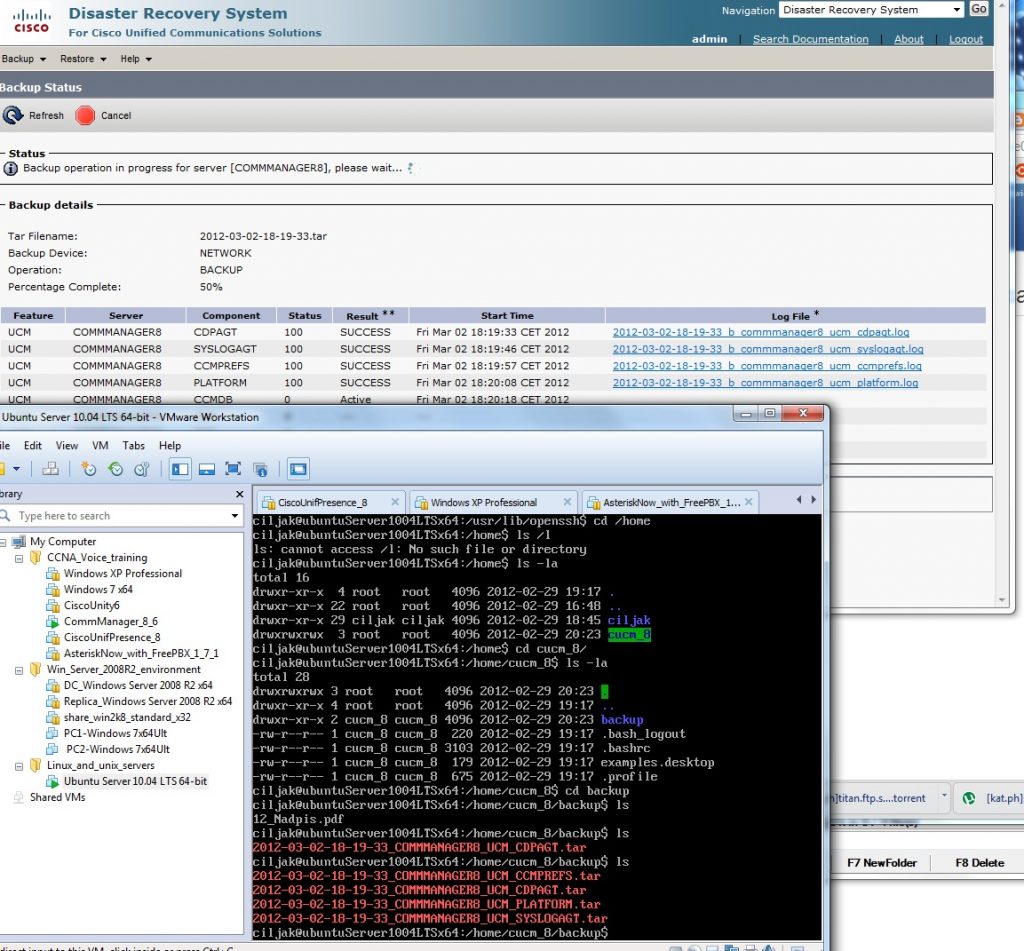
When transfer completed  …
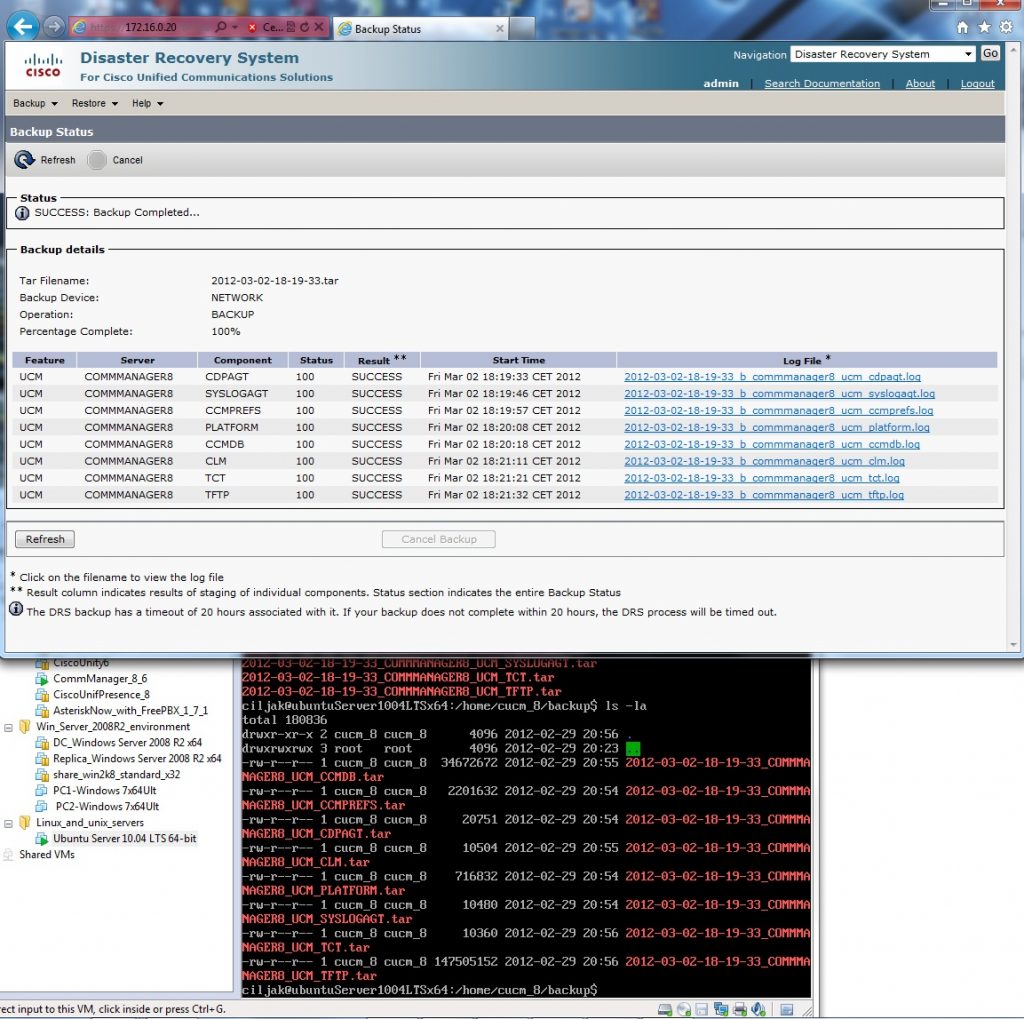
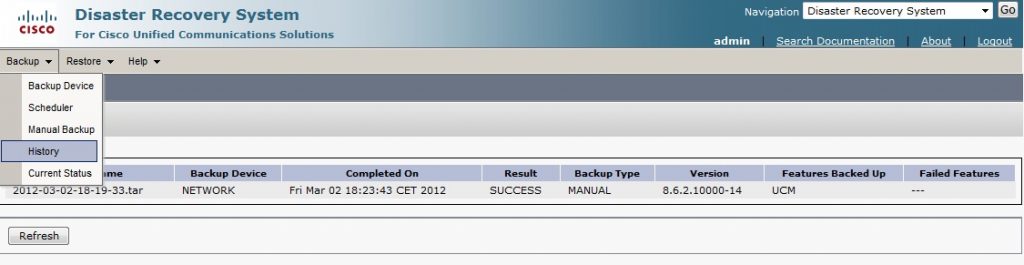
Also CUCM Disaster recovery system remember successfully made backup and generate this output in backup history .
13. Elimination reliance of CUCM on DNS service

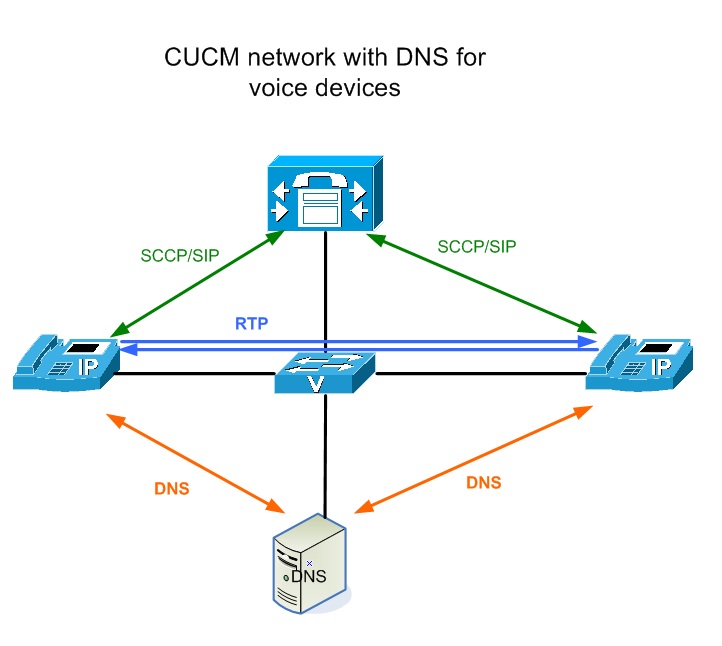
DNS name resolution is needed in voice network if DNS is in use. DNS lookup process must occur before any signaling occur. As result we can expect delay or in worst failure of DNS system on network environment lead to failure in voice placing. Conclusion is DNS is not recommended for use in voice network.

Closer look on protocolar data flow in network with DNS is on next picture. For drawing topology diagram you can obtain appropriate stencil for Ms Visio from cisco page http://www.cisco.com/web/about/ac50/ac47/2.html.

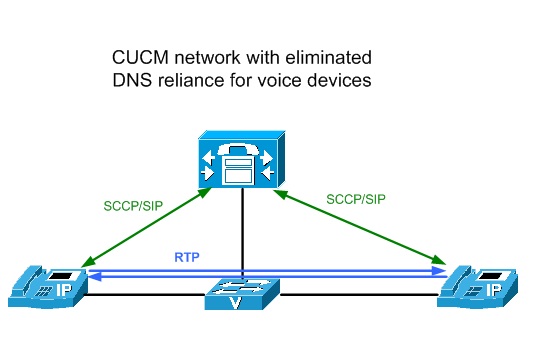
But network environment in voice VLAN can be clean from DNS PDU as you can see on picture that demonstrate network with eliminated DNS.

Now you can ask: What is the way how to eliminate reliance of CUCM on DNS?

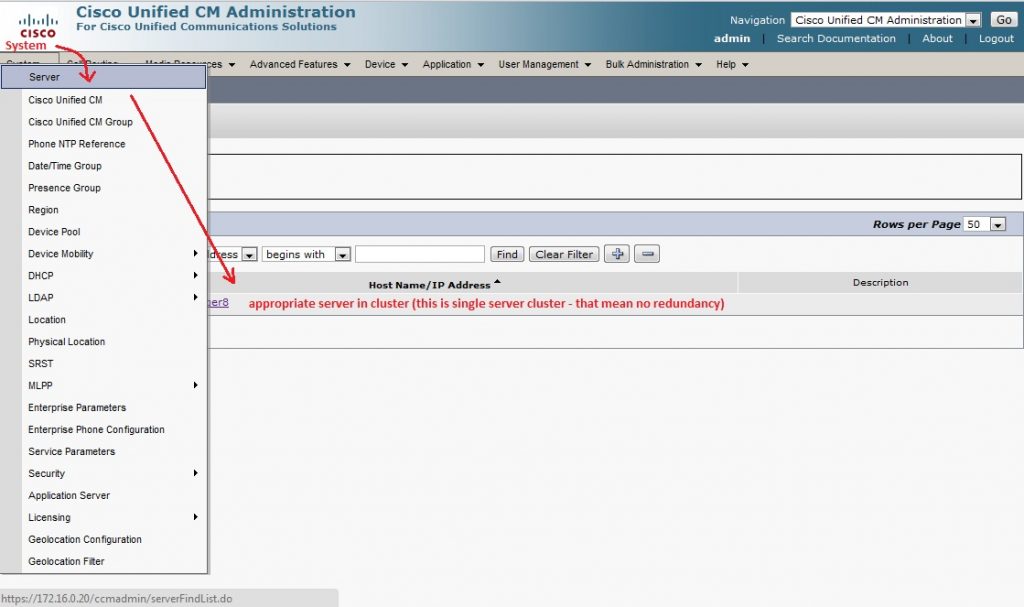
Default installation of CUCM (as it show next picture) list hostname of CUCM server (Publisher or subscribers) in database field but not real IP address. To change these value we must select appropriate CUCM server from system administration menu and replace name with IP address (System -> Server (then appropriate server)).

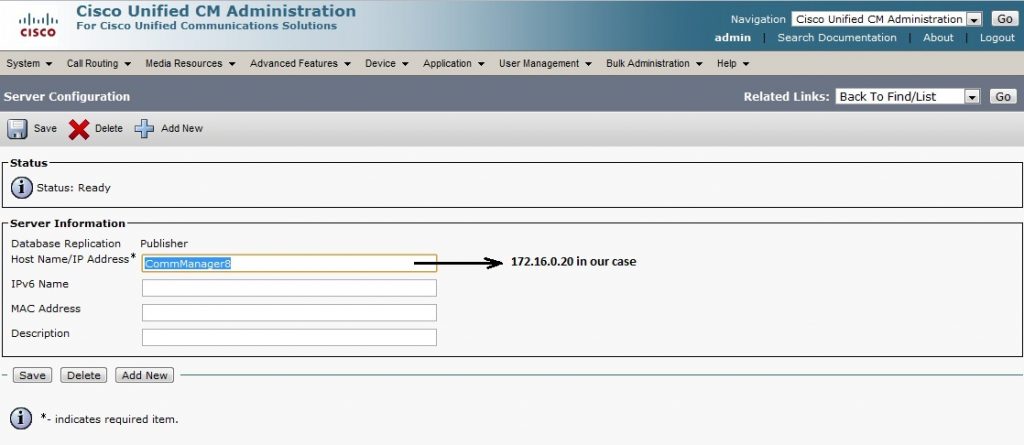
From list our cluster servers (in my case it is stand alone CUCM server) select appropriate server and open it that lead to next window.

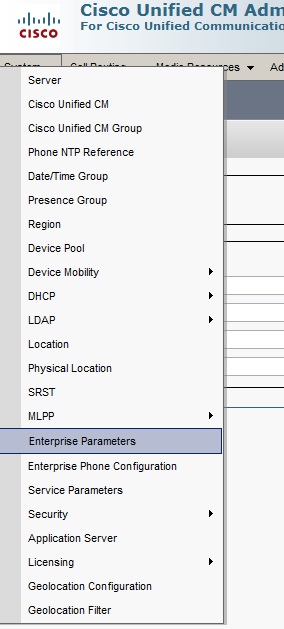
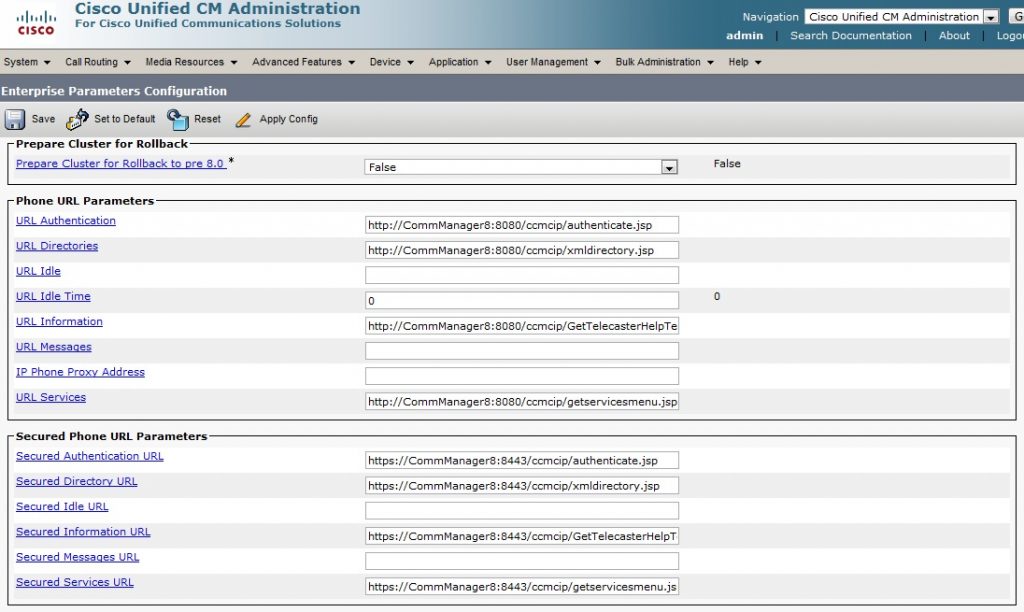
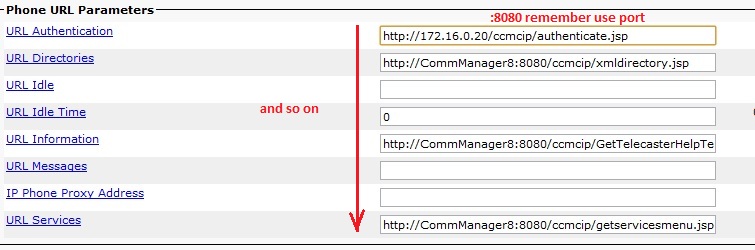
But in CUCM database is another reliance on DNS system. Phone service URLs use name of server against appropriate IP. We must change it this way. Go to System -> Enterprise parameters and scroll down to Phone URL parameters and Secure phone URL parameters. Change appropriate DNS names to appropriate IP address (in our training environment it will be 172.16.0.20).

In this two block of config change host name of CUCM to its IP address.

Now is our voice network much more independent from DNS failure. But keep in mind that there is also reason to stay on DNS based network model for voice segment. That is when you expect change in network addressing plan, names are more stable as IP address.


12. Hunt groups how to

Hunt groups enable set one phone number (this number is refered as pilot number) as distributor of call to extensions defined in number list. Hunt group selection algorithm defines who receive next call in list. Our lab will show you how to configure simple hunt group on Cisco Unified CME.

Basic terms bounded with hunting number in list from pilot number are:

  • pilot number – ephone-DN that is dialed to reach a hunt group. (optionally keyword secondary)
  • algorithm type – method used to select which phone in hunt list should ring next,
  • list of member – group of ephone-DN that belong to the hunt „pool“,
  • hops – number of extensions that algorithm will try to ring before going to the final number,
  • timeout – in seconds – how long will ring a extension in hunt list before moving to the next extension selected by algorithm,
  • final number – number that is tried last after the number of hops has been exceeded

For hunt group creation is used ephone-hunt <Tag> configuration command. Tag can be number from 1 to 100.

For selection of next ringing phone in hunt group in Cisco Unified CME can be selected these algorithm:

  1. Longest idle – ring phone that was longest idle
  2. Sequential – rings extensions in exact order as was configured in list
  3. Peer – circular fashion – next ringed extension is in right position in list against previews ringed.

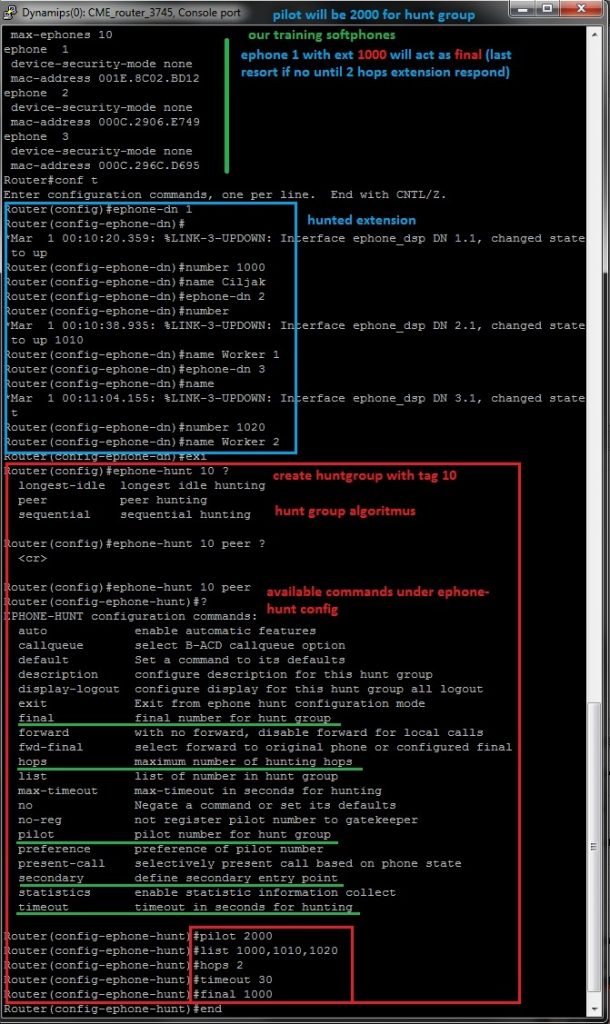
Our scenario consist of three ephone with unique extensions 1000, 1010 and 1020. All numbers are in hunt list. For ephone-hunt <Tag> algorithm we select nr. 10. As a pilot number had been selected 2000. Final destination after ringing number in list after hop 2 is first extension 1000. 

Next picture show configuration commands and appropriate options for select

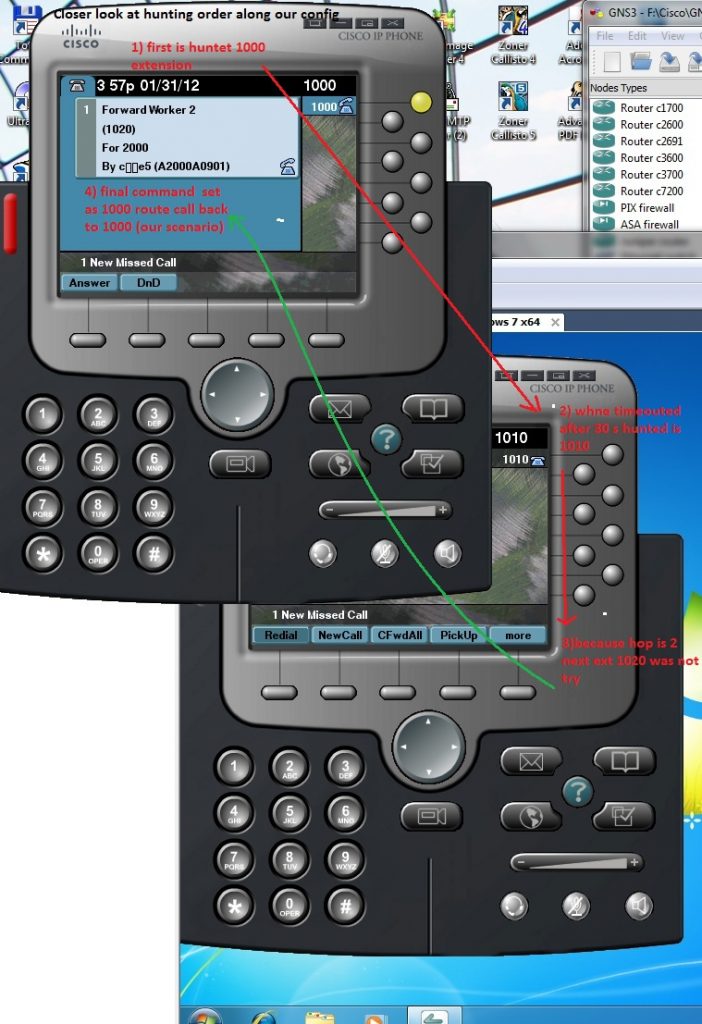
Closer look at call to hunt pilot and mechanism of selection ringing phone by hunt algorithm describe next two pictures:

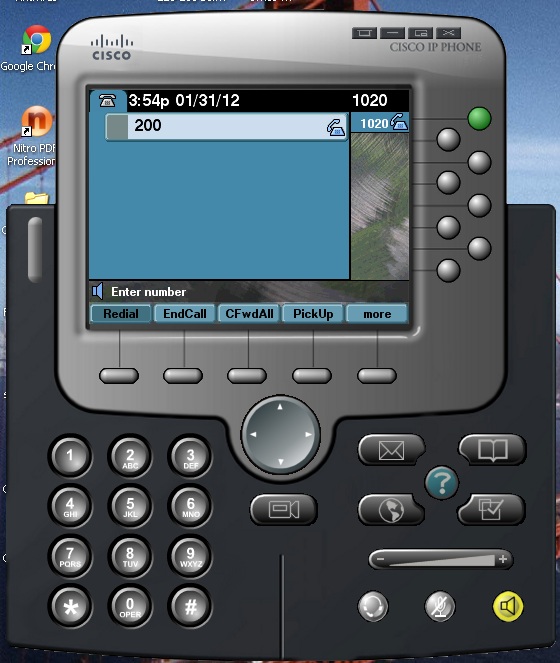
First number in hunt list is extension 1000 next hunted  number is right from 1000 (it is 1010) because peer (circular) algorithm was configured using ephone-hunt 10 peer command. When hops reach 2 (two ringed extensions) final number 1000 take ringing line.


11. Cisco unified communication manager 8.6 autoregistration for ephones

CUCM (Cisco unified communication manager) 8.6  is application based (run on isolated Linux OS RedHat)  comprehensive communication platform that support features for high deployment scenario up to 40 000 user per cluster. Further reading about development products from communication manager line can be found on article http://en.wikipedia.org/wiki/Cisco_
Unified_Communications_Manager
.
Our training lab will run CUCM 8.6 on environment of VMware workstation 8 (or later) – for simulation must be dedicated for this machine 2G RAM and 1 CPU core as a minimum. How to install CUCM from installation image pleas read 
http://www.computerfreetips.com/Cisco-Call-Manager-CUCM/Cisco-CUCM8-install-vmware.html.

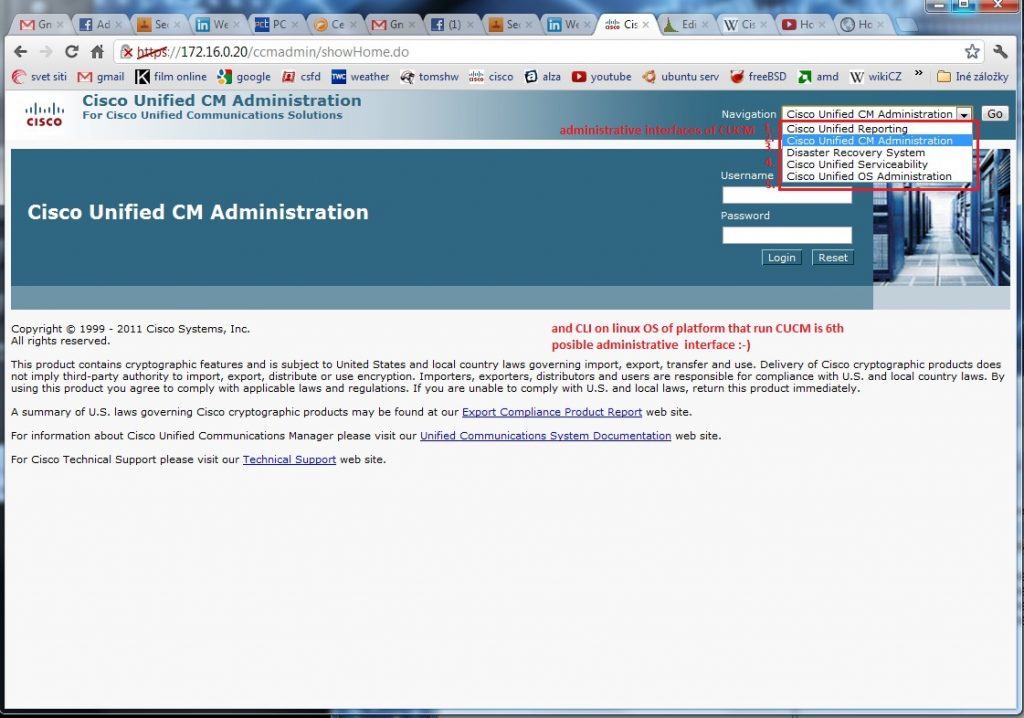
First important thing is that administrative web environment consist from 5 interfaces as you can see from next picture 

Auto registration is disabled by default against default behavior of small brother CUCME (up to 400 in ISR G2 routers older ISR routers support up to 250 clients).

Next steps enable auto registration on single CUCM installation environment (act as single publisher with no subscribers for redundancy).

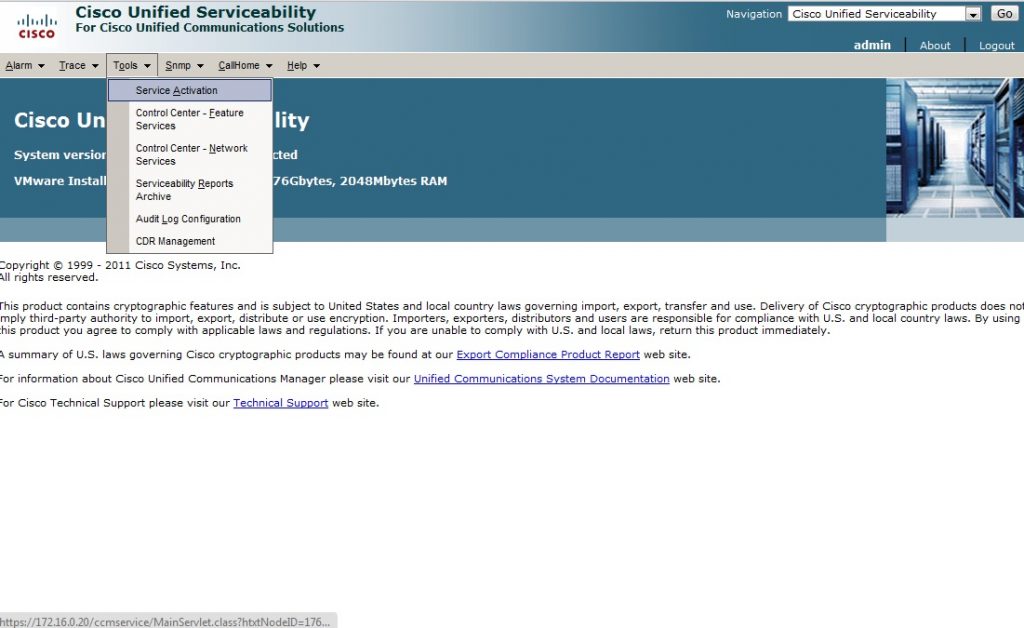
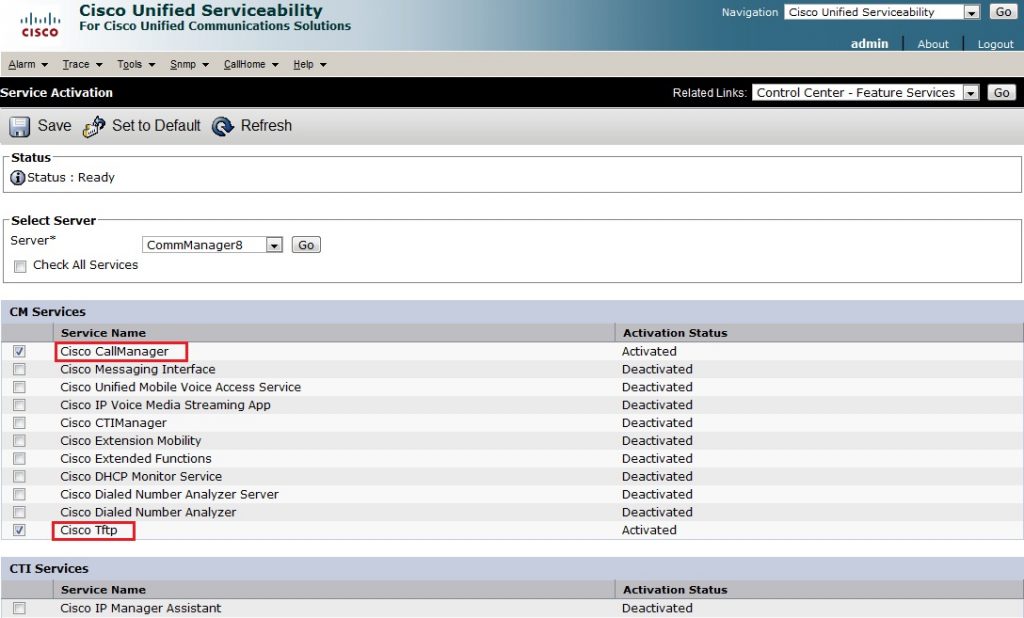
1) Enable services important for work – CM service and TFTP (all is disabled by default). This is done by Cisco unified serviceability in web interface.

Select these services and apply

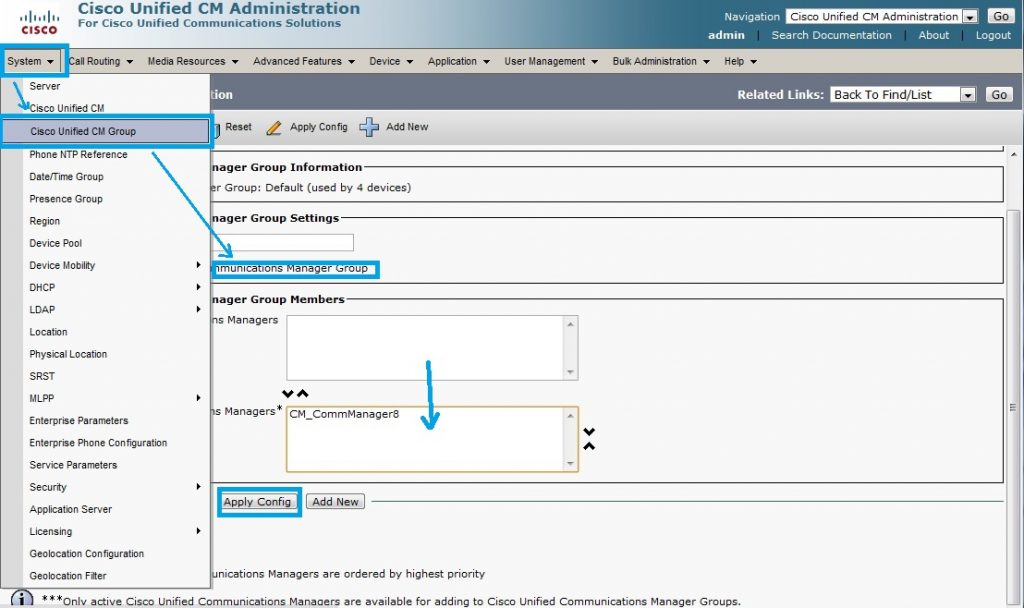
2) Check settings under system – CM groups and default group created during install

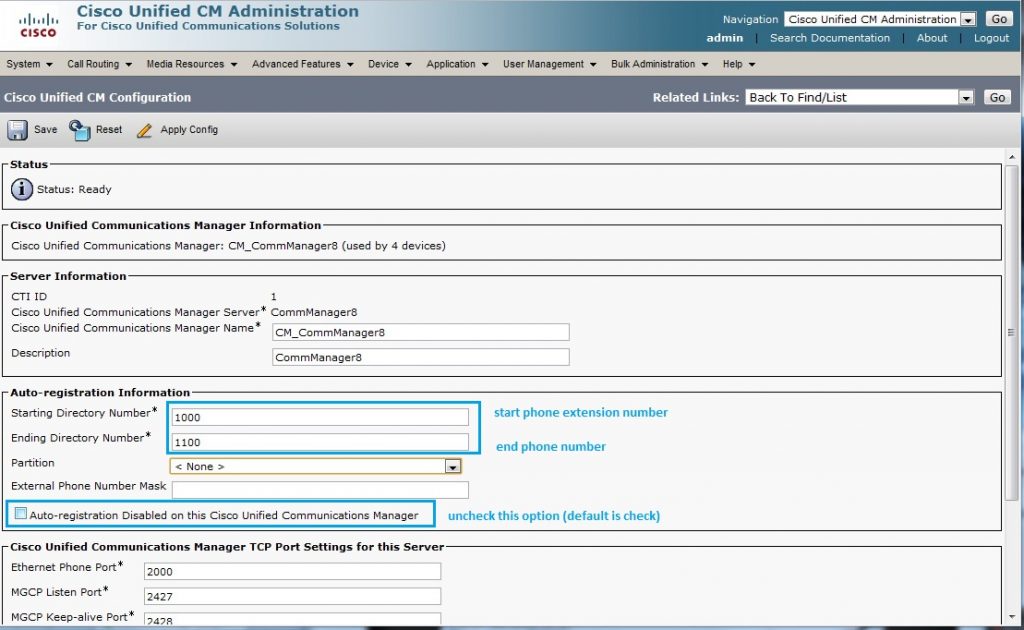
3) Enable auto registration under Communication manager from same section system

As reference for configuration please refer to video of Kewin Wallace on youtube http://www.youtube.com/watch?v=rGeh8zsm890&list=
PLCDD735A54A71D3CC&feature=mh_lolz


10. Paging

Paging enable to broadcast voice message to ephones. We can look at paging as one-way intercom. Difference between intercom and broadcast is that paging broadcast message to multiple or all phones.

A phone can be assigned only one paging ephone-dn but you can assign paging groups to include multiple ephone-DNs.

Paging can be configured as:

1) Unicast – is limited to max 10 receiving devices (high traffic volume ) – all streams contain same information that waste resources.

2) Multicast – scale well, need to configure UDP port number for multicast stream (default is 2000 UDP).

Our training lab will use extension 6000 for paging ephone-dn and for multicast use 239.1.1.1 port 2000 (224.0.0.0 – 239.255.255.255 except 224.x.x.x MoH).

Example of CLI config:

configure terminal

ephone-dn 5

number 6000

paging ip 239.1.1.1 port 2000

exit

ephone 1

paging-dn 5 multicast

ephone 2

paging-dn 5 multicast

ephone 3

paging-dn 5 multicast

end

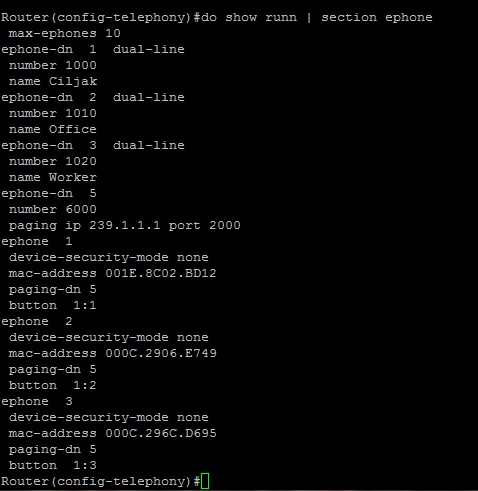
Great command that can be used for examination only ephone part of running-cofigu is

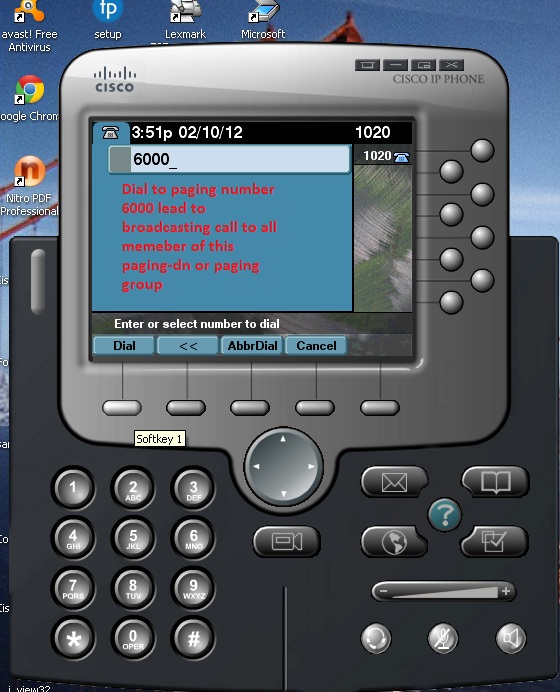
Now we are able call to paging extension 6000 and make a call

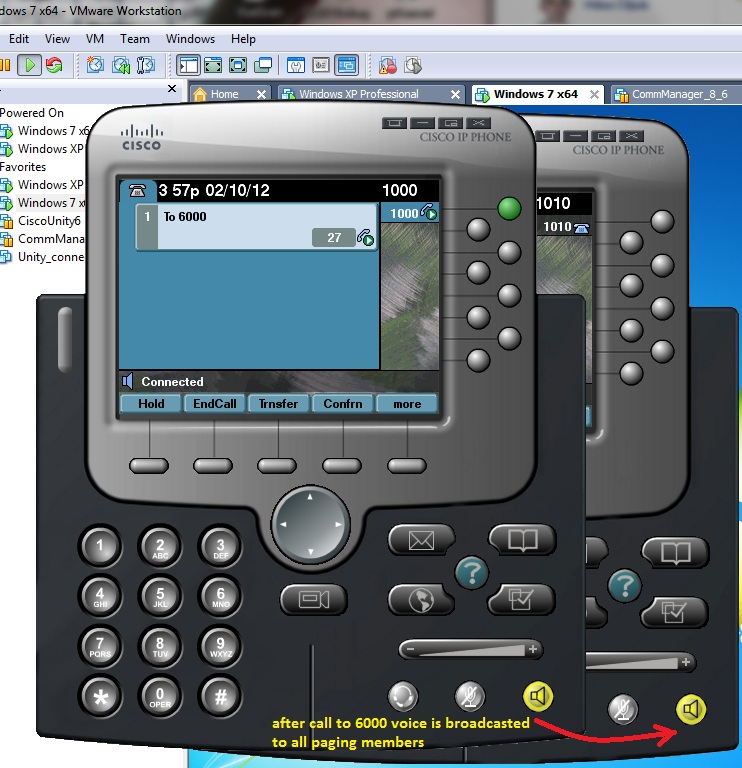
Now you can feel one-way intercom – when we are „through“ voice is broadcasted from subscribed devices speaker as it is indicated with green light on speaker.

When more granular control over paging members is expected there can paging group help. How to do it follow next:

1) Make appropriate paging ephone-dn one per member of paging subgroup

ephone-dn 5

number 6000

paging ip 239.1.1.1 port 2000

ephone-dn 6

number 7000

paging ip 239.1.1.2 port 2000


2) Group appropriate paging-dn to wished paging groups – we use only one group associated with number 7777 that will broadcast voice to all of our ephones

ephone-dn 7

number 7777

paging group 5 6


3) Assign paging-dn for appropriate ephones

ephone 1

paging-dn 5 multicast

ephone 2

paging-dn 5 multicast

ephone 3

paging-dn 6 multicast

(Ephone 1 and 2 are paged from ephone-dn 5 number 6000 and ephone 3 belong to another paging group with ephone-dn 6 and call extension 7000. But all phones can be paged in same time when we make call to extension 7777 that is paging group binding ephone-dn 5 and 6 together.)


0 Preparation of basic VoIP environment with CME

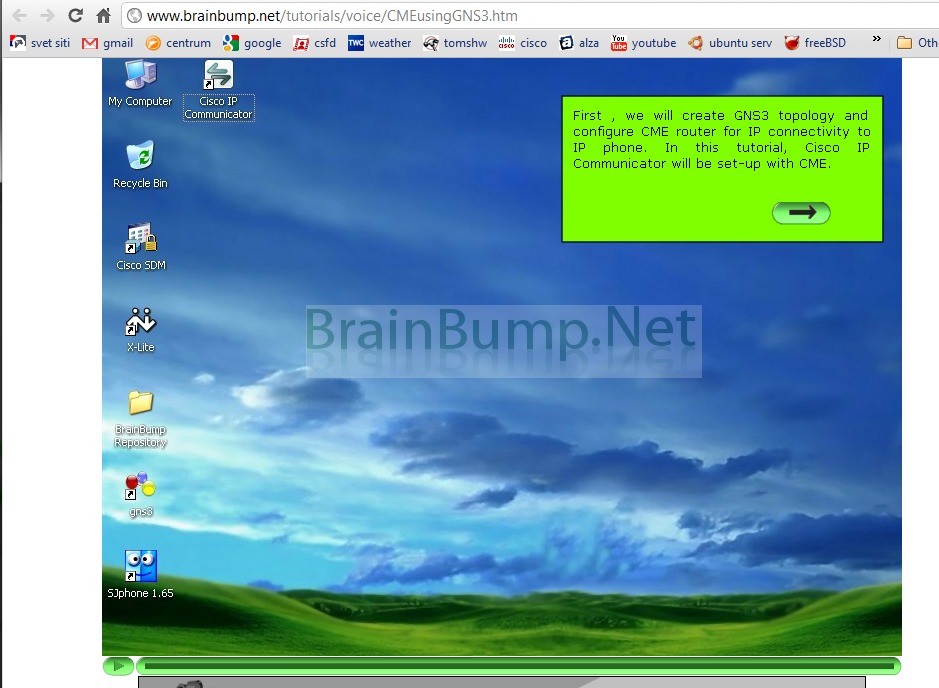
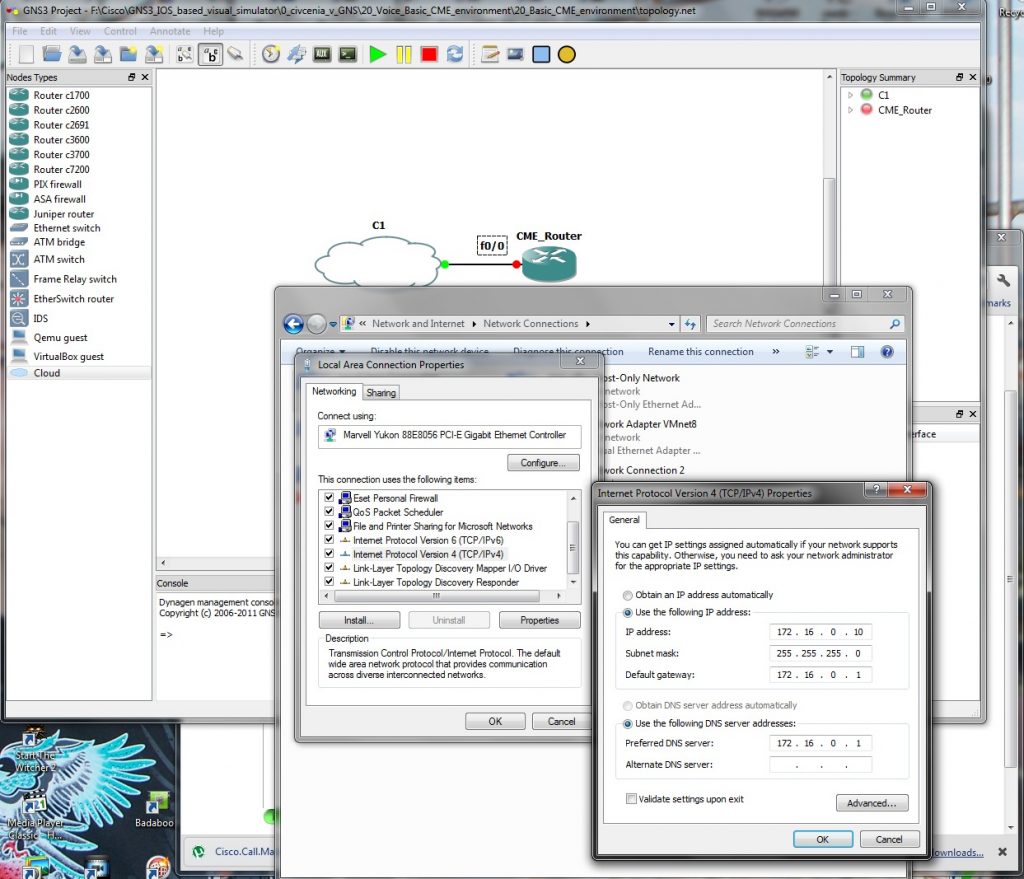
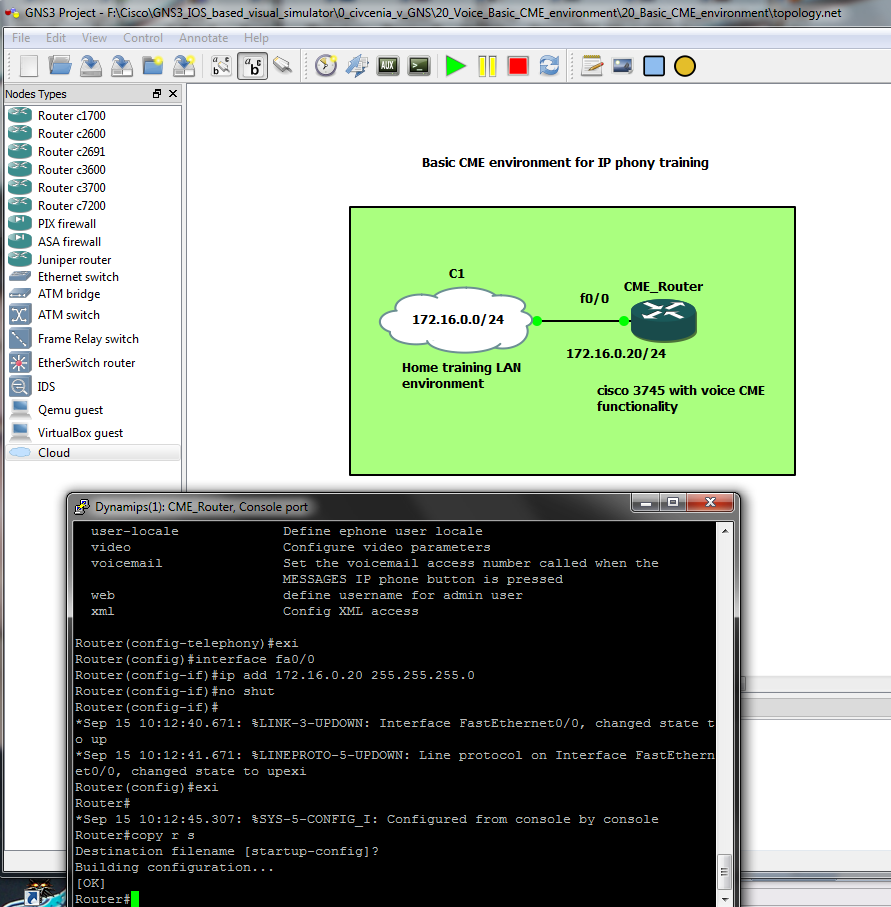
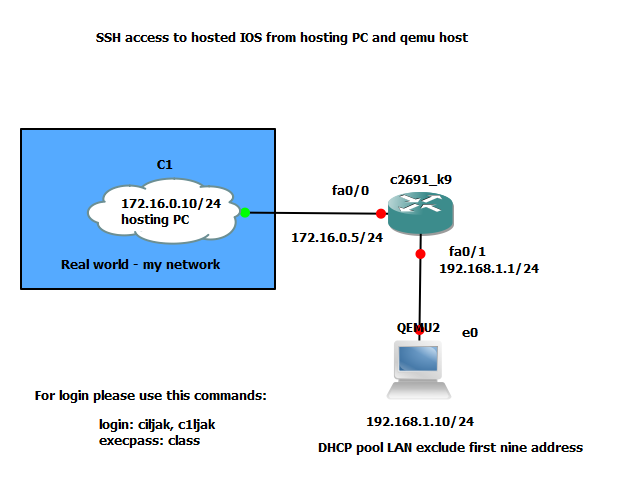
Baseline for our first training environment created with support of GNS is  www.brainbump.net/tutorials/voice/CMEusingGNS3.htm . Testing environment will use cloud component mentioned in earlier topics for interconnection virtual and real pc environment. Me home network use 172.16.0.0/24 private addressing scheme. For training pc where will run also software IP communicator use static assigned 172.16.0.10/24 IP. CME routers fa0/0 interface use 172.16.0.20/24 IP and for future use is planed 172.16.0.15/24 (second sw IP communicator – functionally equal to cisco 7970 ephone) on VMware environment.

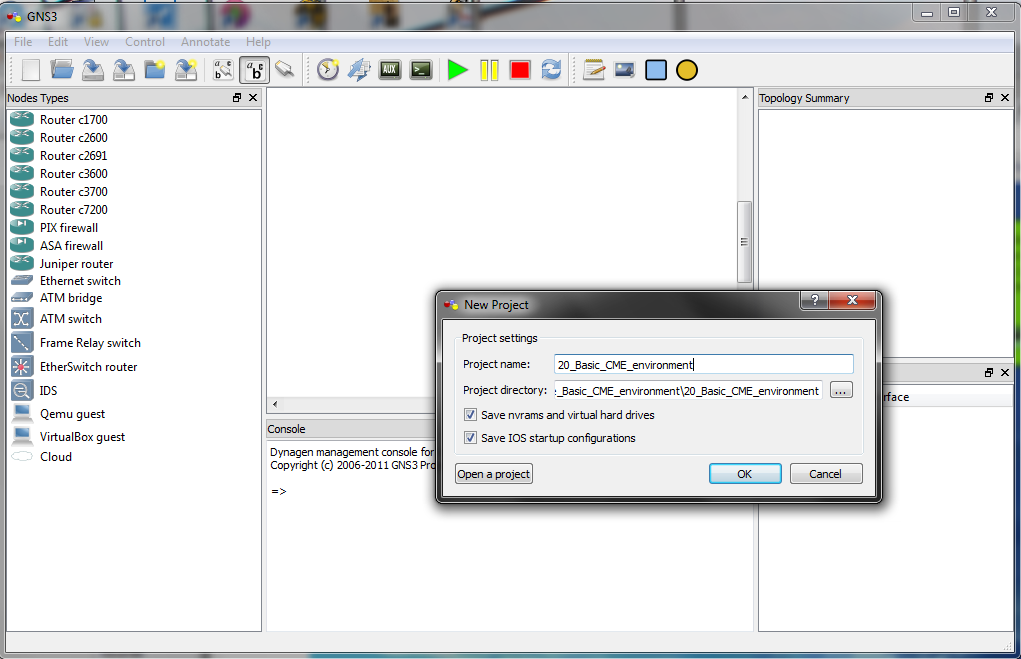
Our project settings show next picture – for smoother transfer of configs check to save configs and nvrams.

Configuration of hosting (real) computer local stack is

GNS3 training environment is prepared and if you will you can add some eyecandy

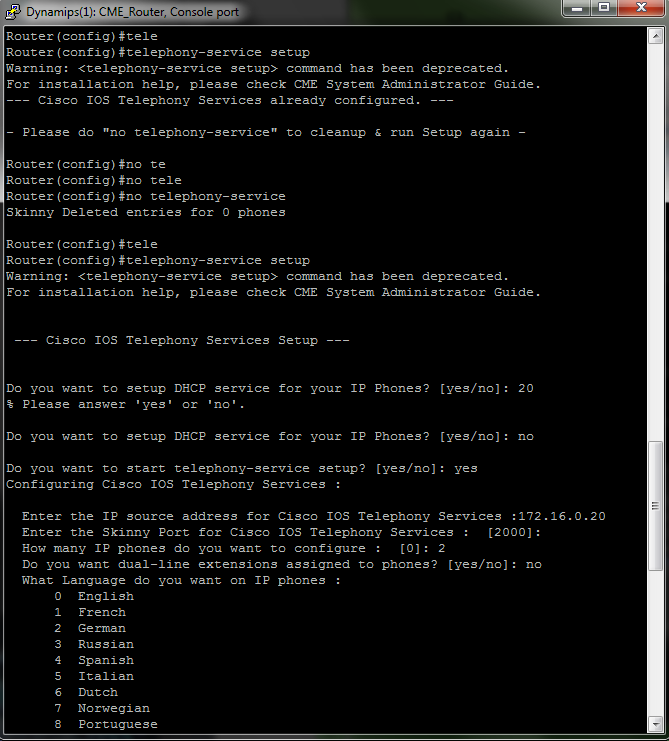
For our first test we can use simple way how to setup telephony-service on router (but only for quick setup, this way is not so flexible as finetunnig of all parameters of telephony-service).

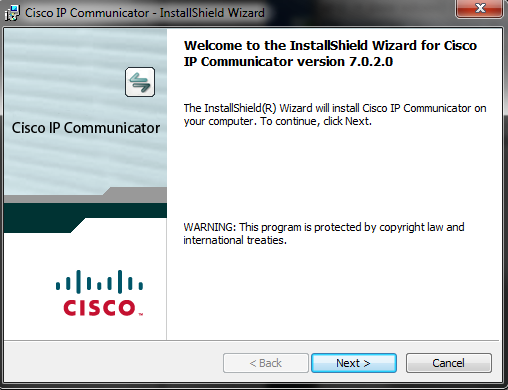
We also need sw ephone, installation is

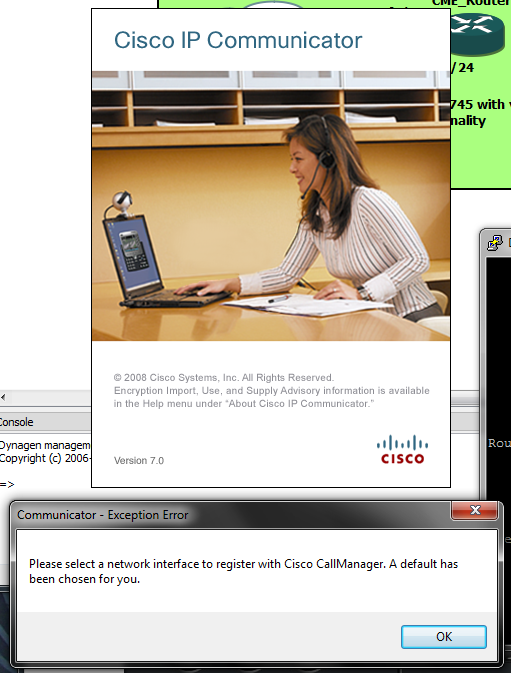
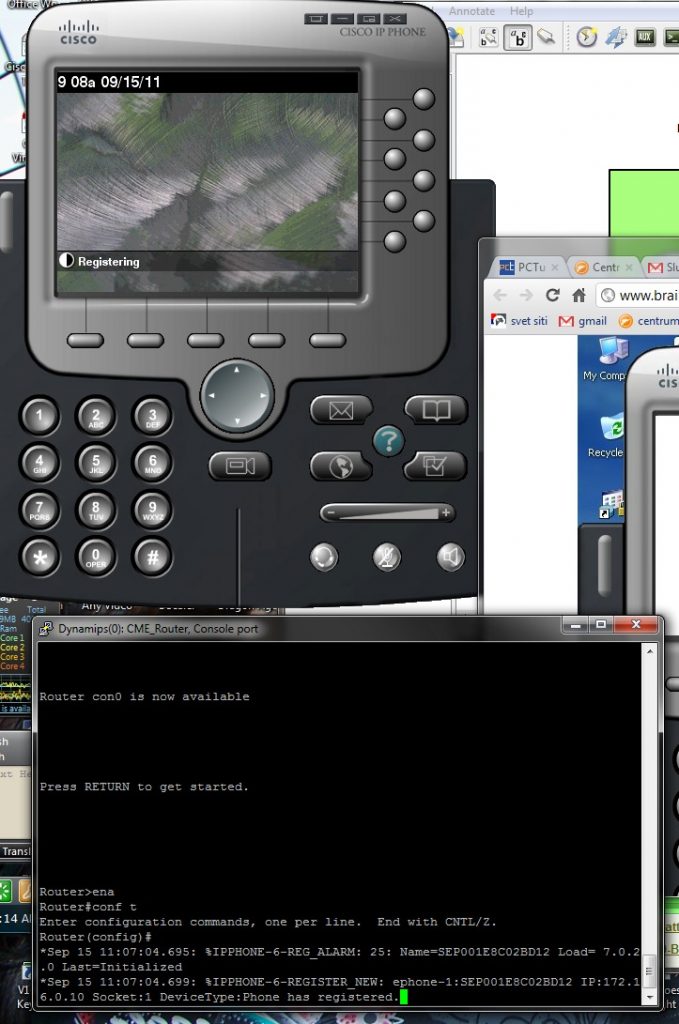
When all is prepared for first test, our ephone will be able to register with CME router acting like a voice gateway. Auto registration was enabled during telephony-service setup for us automatic.

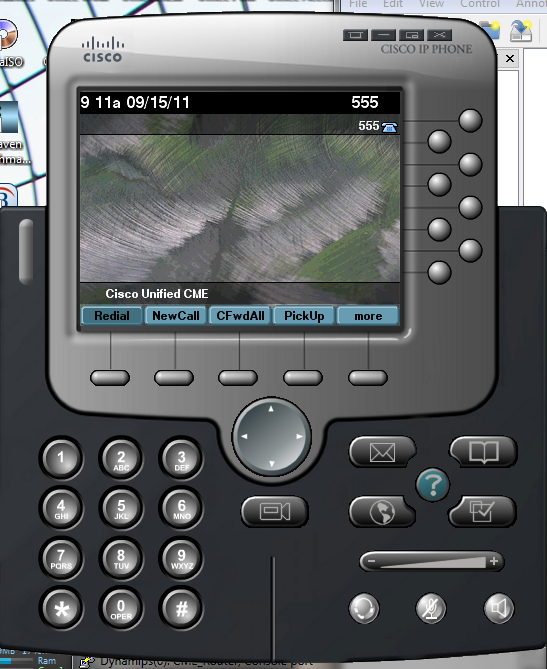
Next picture show you closer look at registering ephone and at screen with button 1 assigned ephone-dn with number 555 (but configuration ephone-dn, ephone-s, buttons and all things associated with VoIP in branch LAN and next with configuration of voice gateways and call legs you can expect in next articles on our web).


GNS3 for our VoIP home training lab

Basic simulation element for our sw based home training lab will be GNS 3 simulator. But question is, what it is GNS3 simulator. Best description we found at www.gns3.org: “ GNS3 is a FREE graphical network simulator that allows simulation of complex networks without the need to purchase network hardware.  

There will arisen second questions: Is it free? And answer is yes and noapplication is free bud as they say: “ Users have to provide their own IOS/IPS/PIX/ASA/JunOS to use with GNS3. GNS3 does not include IOS images – these are copyrighted and are the property of Cisco Systems and other copyright holders. “ , www.gns3.org, 4.12.11

We will assume that you have appropriate IOS images from your cisco pages and are correctly licensed now.

Great video about obtaining GNS3 and take basic setup is provided by project homepage: http://www.gns3.org/2011/09/video-how-to-download-install-and-get-working-gns3/. One of the most important thing is run virtualized IOS and calculate Idle PC value that are important for resource management of hosting PC. If you ignore this step, GNS simulator with only one running router will consume your whole pc computing resources (full load your system).

Before we start with basics voice simulations, i will introduce one great simulation component that enable us interconnect virtualized network environment with existing resources on our pc-s ore our home network.

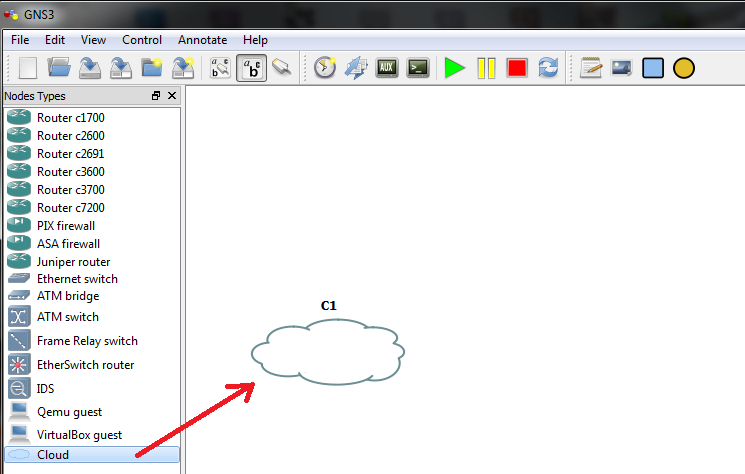
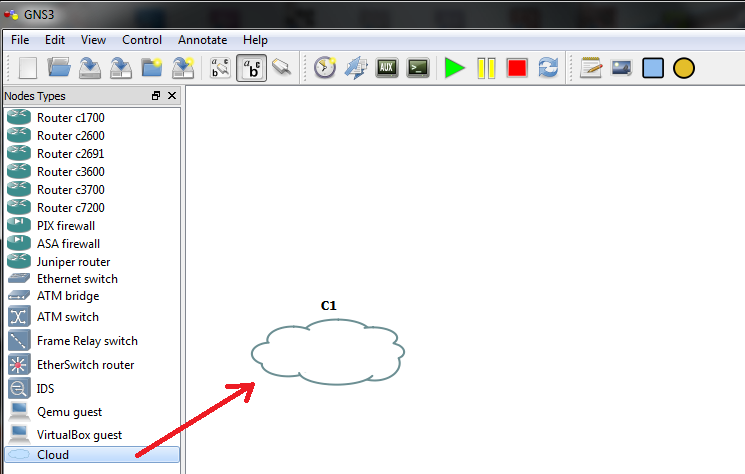
This component is cloud and can be added this way

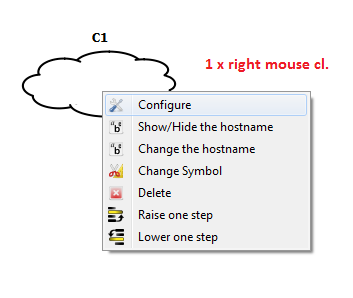
For proper configuration right click on cloud in topology pane and

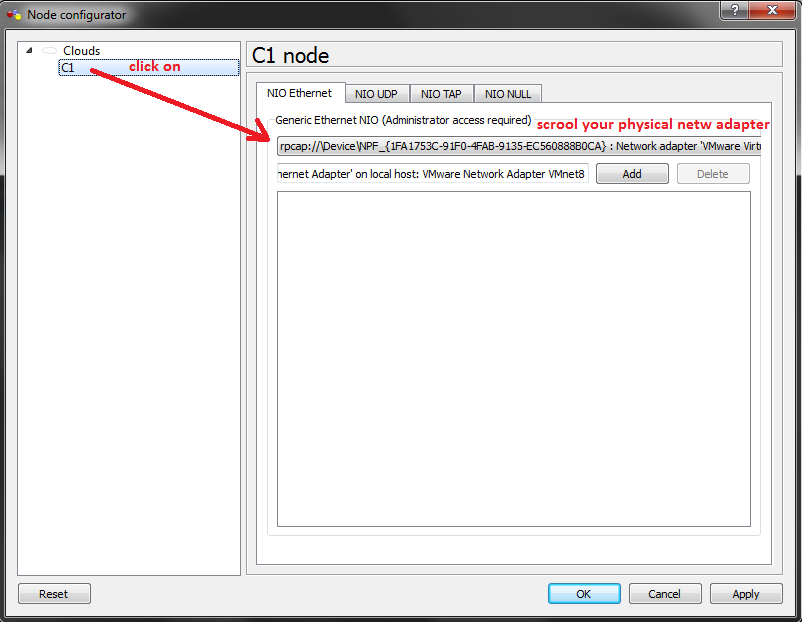
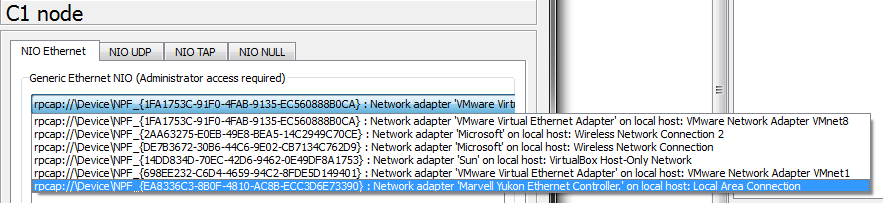
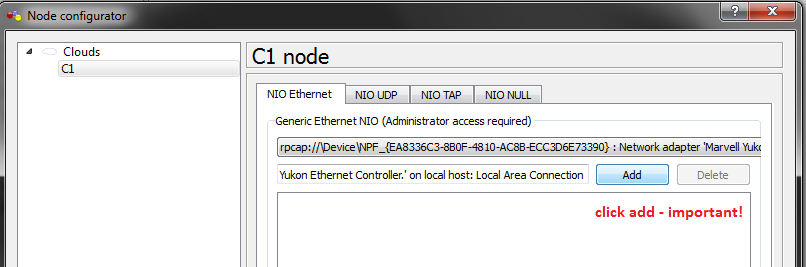
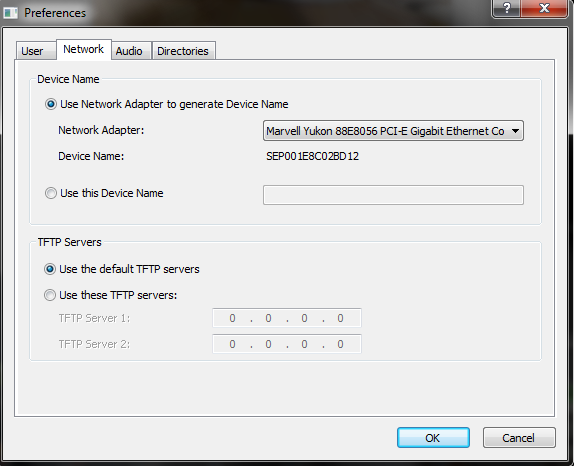
In open dialog select instance name C1  and scroll your physical interface (network car of hosting pc) – in this case there were 6 interfaces (look at next 2 pictures).

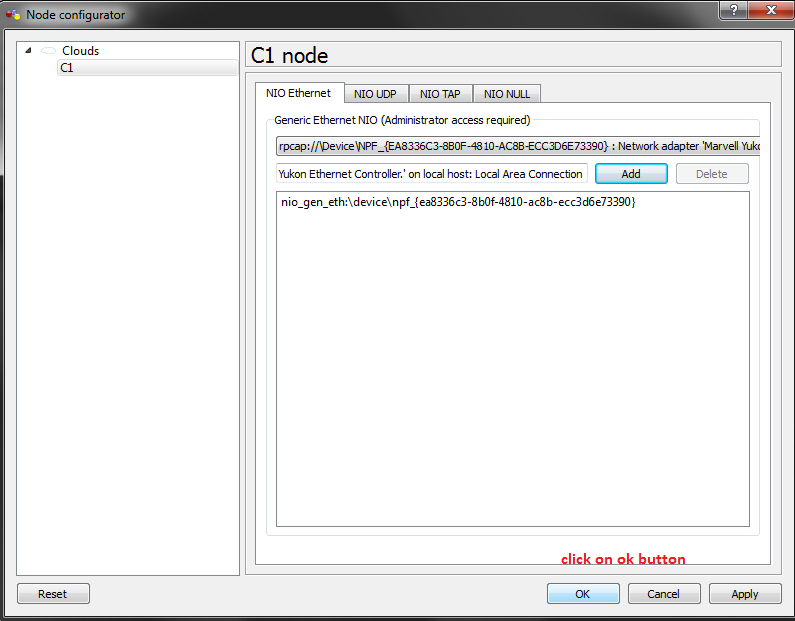
Then click add button and next ok.

With interconnected hosting (your) PC and simulation environment (that is in fact not a simulation but Virtualization for run real IOS – but switching concepts are poorly implemented) you can try SSH access to router as you can see on next photos. But prerequisite is that you from CCNA know how to enable SSH access to VTY line of your router with appropriate user account and local or radius authentication.

Config of router was

hostname c2691_k9
!
boot-start-marker
boot-end-marker
!
enable secret 5 $1$e.aD$bBCjuv86TM6sbFKb7Spvm0
!
no aaa new-model
memory-size iomem 5
ip cef
!
no ip domain lookup
ip domain name ciljak.com
!
!ip ssh authentication-retries 2
!
interface FastEthernet0/0
 ip address 172.16.0.5 255.255.255.0
 duplex auto
 speed auto
!
interface FastEthernet0/1
 ip address 192.168.1.1 255.255.255.0
 duplex auto
 speed auto
!
!
no ip http server
no ip http secure-server
 
!
control-plane
!
line con 0
 exec-timeout 0 0
 logging synchronous
line aux 0
line vty 0 4
 login local
 transport input ssh
line vty 5 935
 login local
 transport input ssh
!
!
end
 
Some command was added automatically, that must be keep in you mind and some ! was omitted.


9. Call parking

Call parking enable to place call in „parked“ slot using unassigned ephone-DN and then resume the call from any cisco phone. Call park is the same functionality as hold bud call placed on hold can be resumed only from local phone. You can look at parking the call as extension of hold call.

Unused ephone-dn or ephone-DNs must be configured for parking slot.

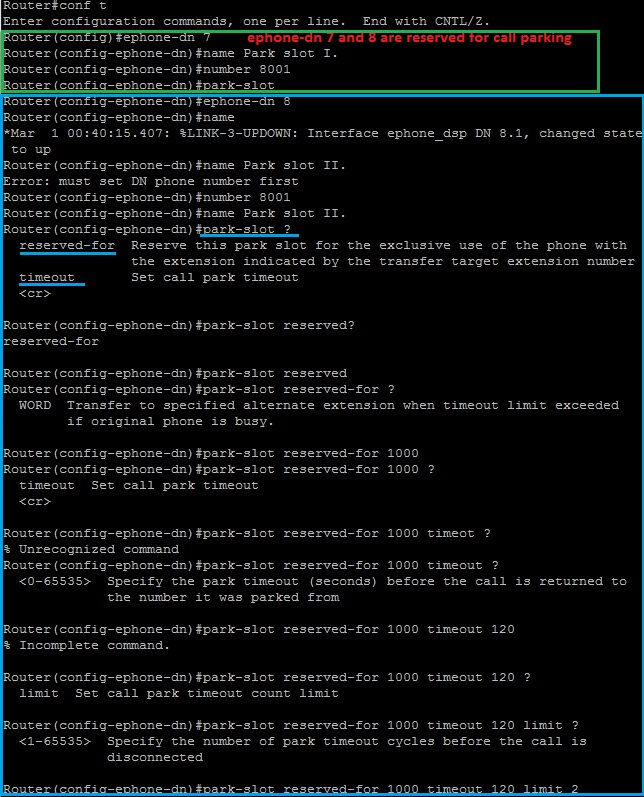
Our lab reserve ephone-dn 7 and 8 as parking slots. Park slot on ephone-dn 8 is reserved for extension 1000 (ephone 1) with command entered under ephone-dn config.

Reserved-for options allocate park slot for specific extension (reserve it).

The timeout options configure timer that can help prevent people from parking calls and then forgetting about them.


Appropriate CLI commands are

ephone-dn  7

 number 8000
 park-slot
 name Park slot I.
!
!
ephone-dn  8
 number 8001
 park-slot reserved-for 1000 timeout 120 limit 2
 name Park slot II.
 
 
Output from CLI is

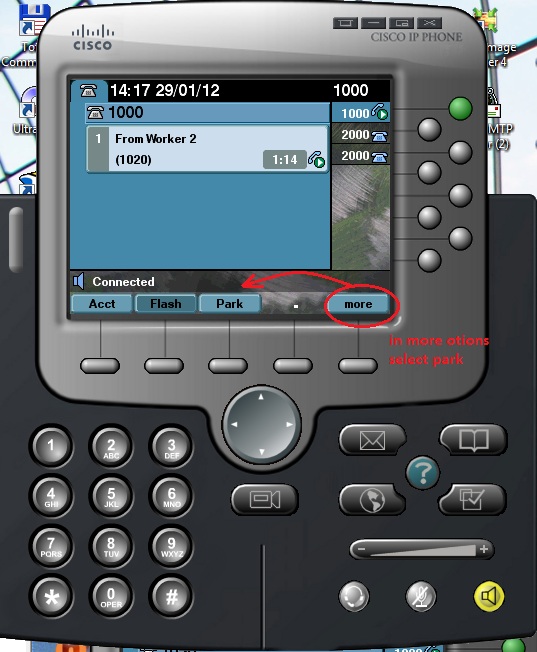
Now is time to try our configuration. call is placed from 1020 (ephone 3) to 1000 (ephone 1). Park softkey is shy under more softkey.

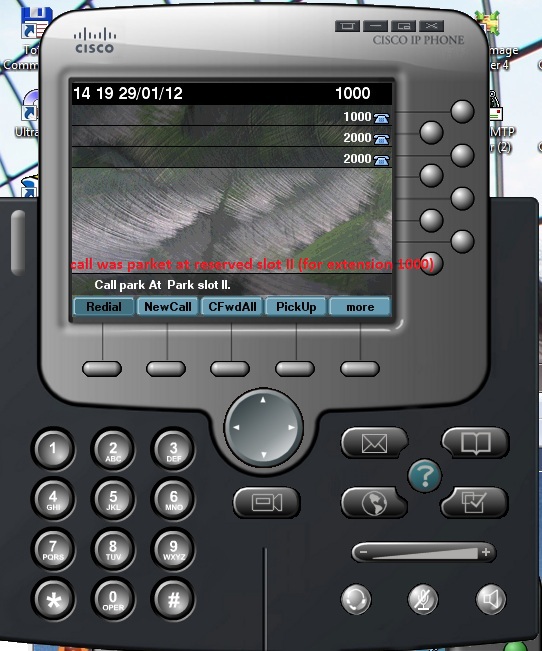
When we have been parked call for a while our screen look like this

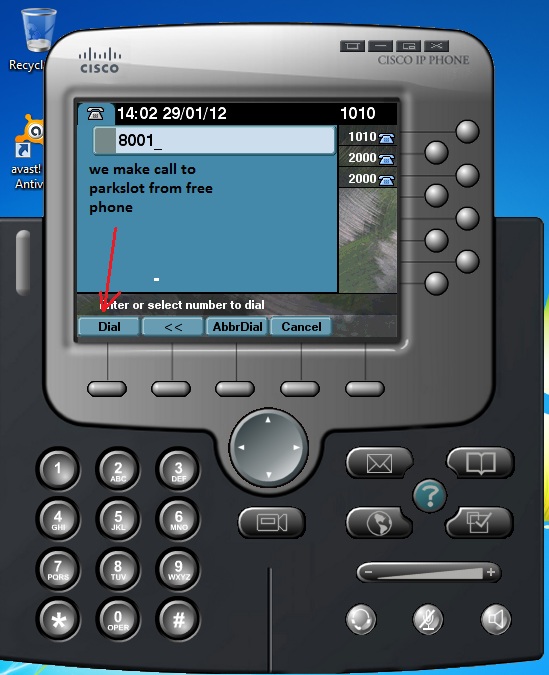
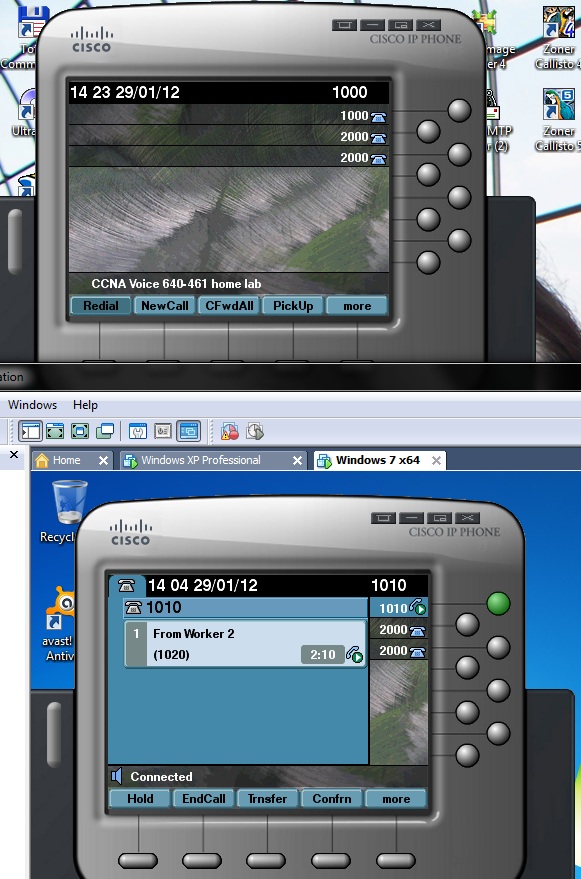
Call is on parked slot and now is time to pickup them by dialing to park slot number 8001 from as example extension 1010 that is ephone 2 (this slot is reserved for ephone 1).

At end is call obtained from parking slot and will continue.


8. Call Pickup

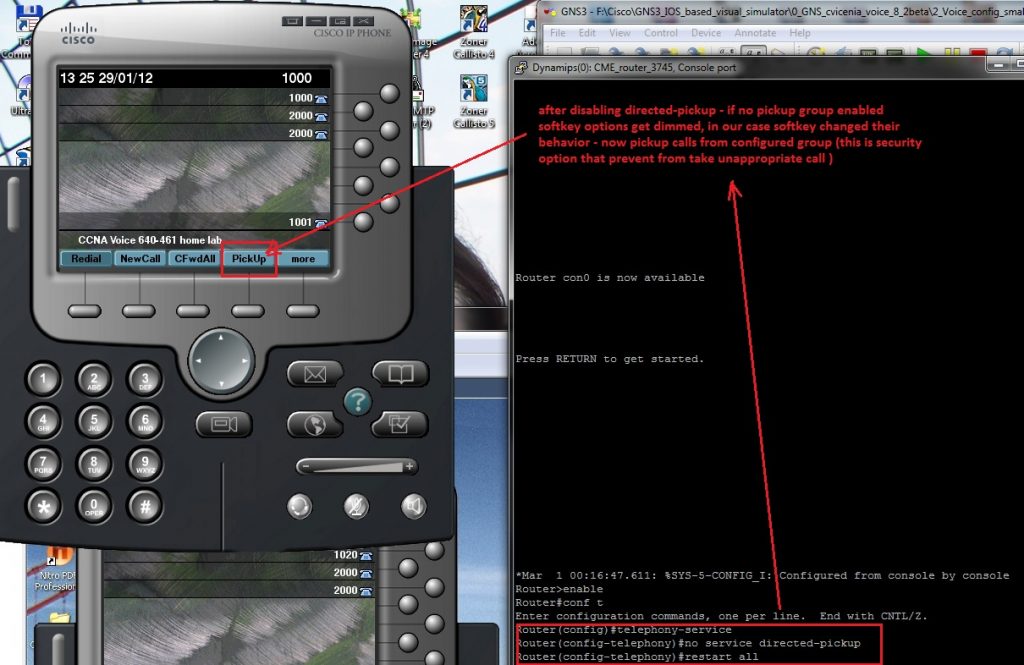
Enable to answer a remote extension on our local phone. Using PickUp key on ephone and enter extension of ringing phone you can answer phone. If this is undesirable  (any phone can pickup any ringing ephone in company) you must disable directed pickup feature (enabled by default). Entering command 

no service directed-pickup

within telephony-service mode.

Next figure show how to use mentioned command.

Much more control to pickup of ringing ephone introduce pickup groups. We can use pickup-group command in config ephone-DN. In our scenario it is

ephone-dn  1
 number 1000
 pickup-group 9000
 name Ciljak
!
!
ephone-dn  2
 number 1010
 pickup-group 9000
 name Worker 1
!
!
ephone-dn  3
 number 1020
 pickup-group 9001
 name Worker 2
!

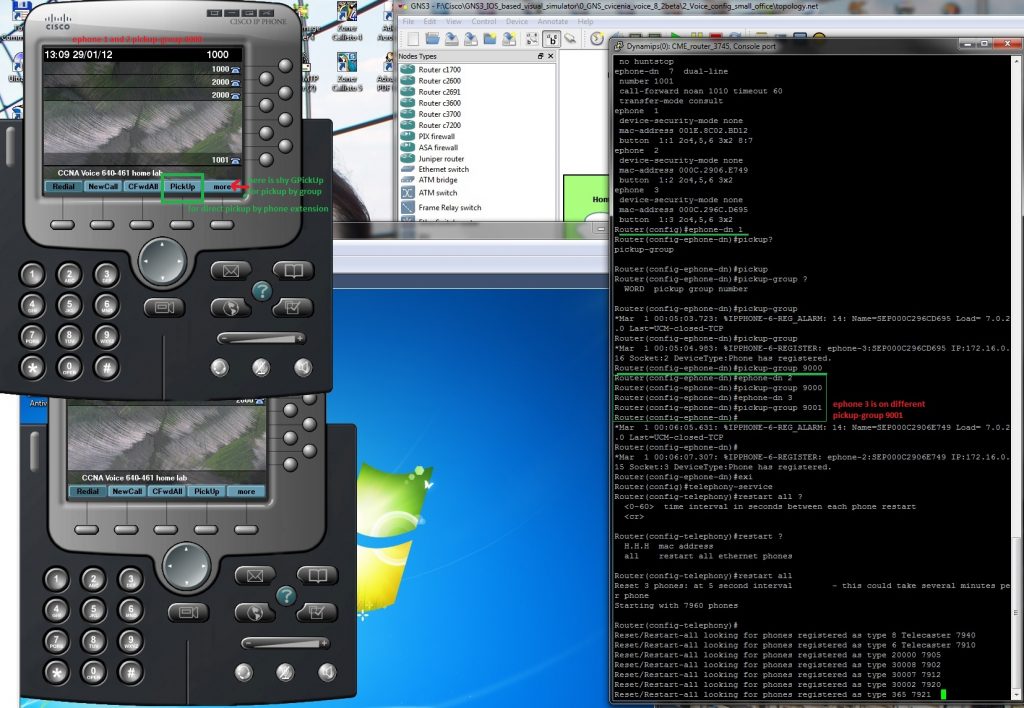
Full config can be obtained from here (consist also from ephone-dn from previews labs). Ephone 1 and 2 share same pickup group 9000, ephone 3 with button associated with ephone-dn 3 belong to another pickup group 9001.

Closer look at configuration and pickup of call is on next pictures.

From phone 3 (1020) is placing call to ephone 2 (1010). This phone is on same pickup group 9000 as ephone 1 that will initiate pickup.

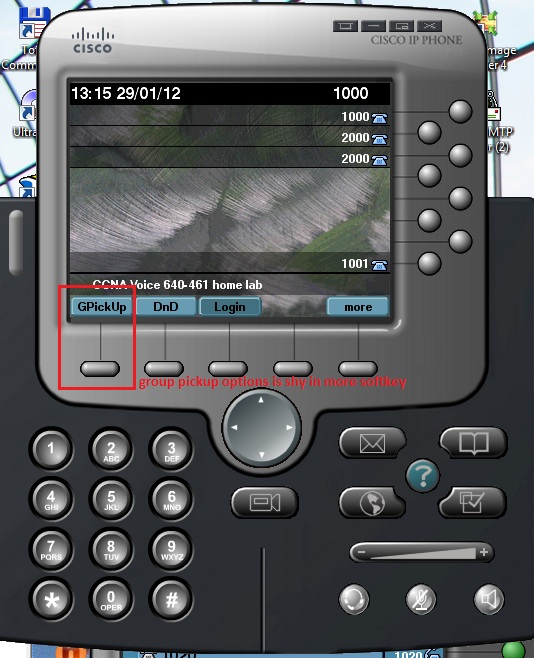
On ephone 1 is pressed softkey GPickUp (shy in more options on basic screen).

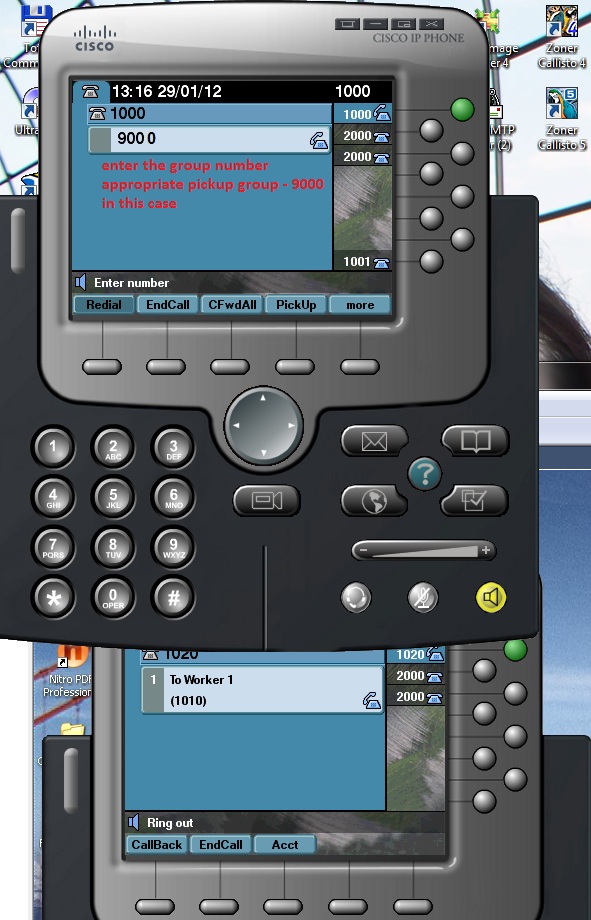
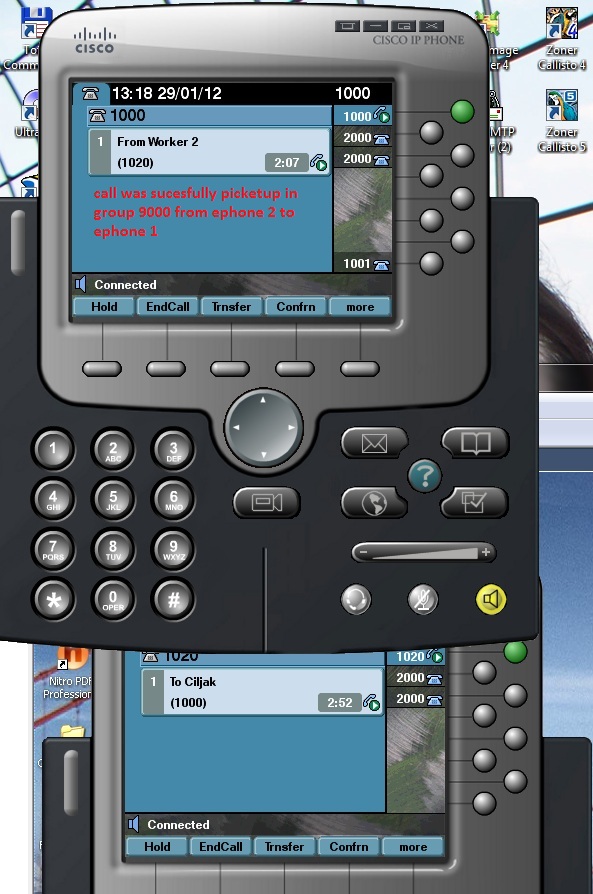
Pickup of call from another phone in same pickup group can begin with pickup group number entering. After call pickup is call answered from ephone 1 and not from desired destination of caller to ephone 2.


7. Call Transfer

Call transfer is process of moving an active phone call from one phone number to another. 

This process can be invoked by pressing Trnsfer softkey and dialing the number where we wish to forward call. 

Before we can transfer a call we must consider some aspects of call transfer.

1) There are 3 transfer options that can be configured under telephony-service at CME router

full-blind – transfer call immediately after entering a transfer number (available on single-line ephone-dn as only one options!!!)

full-consult – (default method but only if dual line available!!!) – allow you to speak to transfer nr. before call is forwarding. As it was mentioned earlier this setup requires dual-line ephone-DNs.

local-consult – (legacy options) –  similar to full-consult but voice traffic low is inefficient. Is cisco proprietary method and should be used only for backward compatibility with older phones.

Please remember that for single-line ephone-DNs the only options is full-blind because consult transfers require use of second line.

2) Transfer method can be configured also on individual ephone-DNs

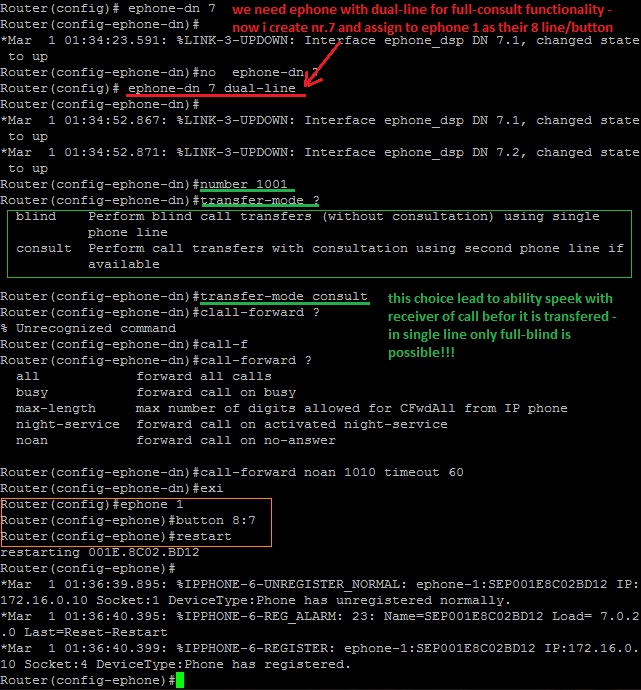
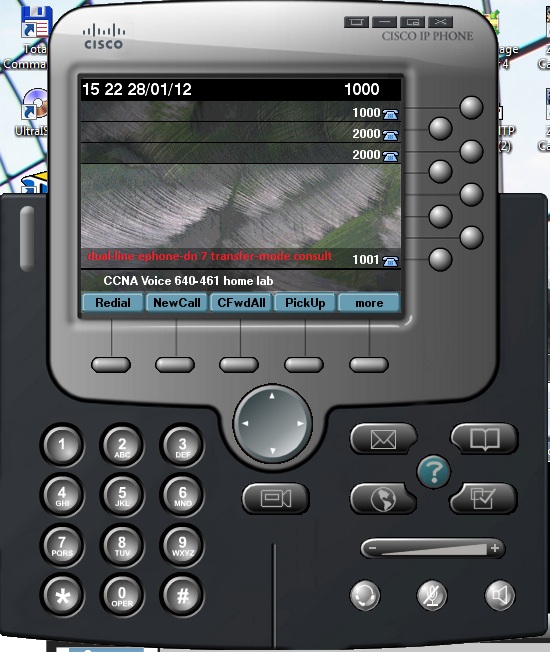
This is way how we configure transfer options in this training lab. But when we will test consult transfer we must to configure ephone-dn 7 dual-line as extension as previews labs and assign them to eight button (example) on our octoline softephone IP communicator.

Full config from GNS cisco router 3745 vith CME capability can be obtained from here

After restarting (hard rebooting ephone 1) we can see this display on ephone screen

All we need we have at this time and transfer examination process can begin.

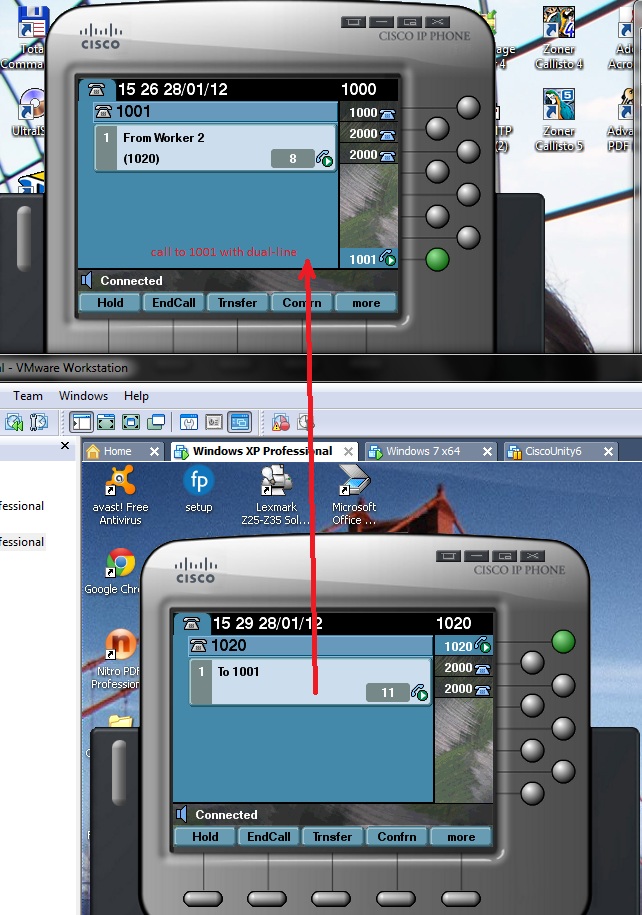
We initiate call from number 1020 to number 1001 that can look like this

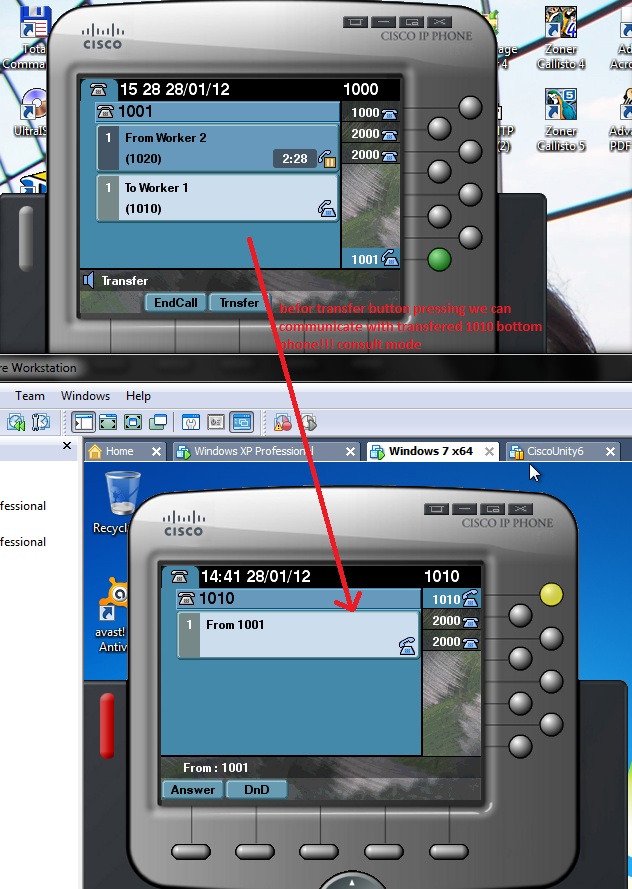
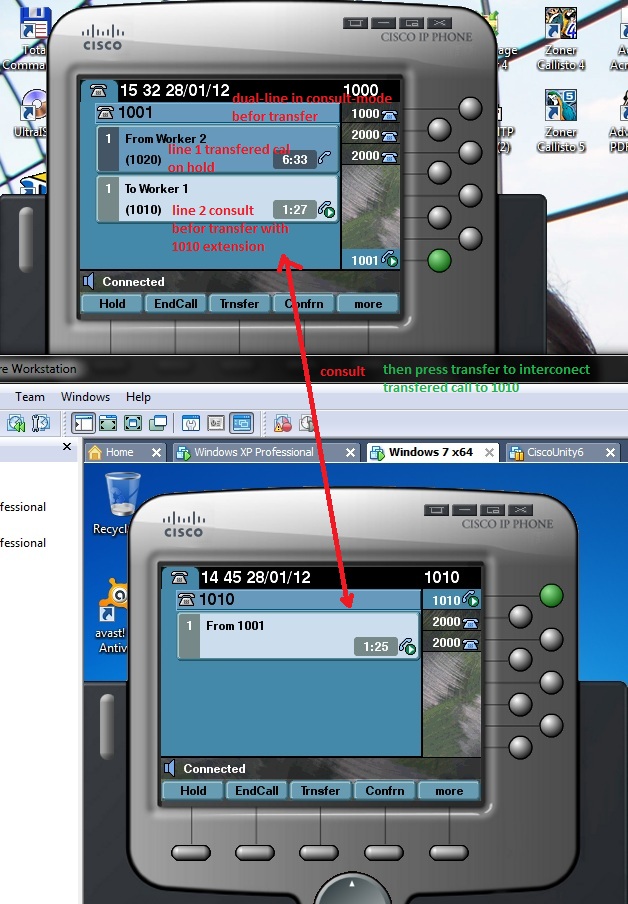
Extension 1001 (my ephone answer the call and decide to transfer it to 1010). I press Trnsfer softkey and type 1010 as forwarding destination – there is dual-line important for consult mode. Transferring call is placed on hold (on picture upper subline of duall line) and transfer consult to 1010 begin (second subline in dual-line on picture).

User on transferring destination with extension 1010 lift the handset of ephone and consult. 

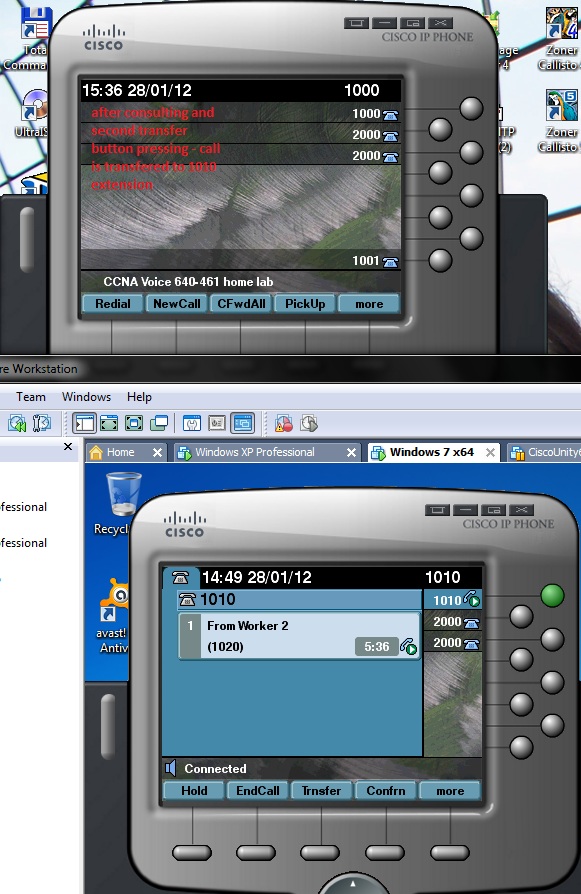
When consult is at its end i can press Trnsfer softkey for second time that definitive transfer call from my ephone with extension 1001 to 1010 extension. As you can see call is transferred from 1001 to 1010 and all communication is now only between 1020 (initiator of call) and 1010 (call was transferring from 1001 to new extension 1010).

Steady state after call transfer show next picture